Features
Cost Center Dashboard
The dashboard provides a list of both departmental and project award cost centers managed by the Principal Investigator (PI). Financial information displayed is sourced directly from the PeopleSoft General Ledger and reflects transactions posted as of the current date.
Please note that the following items are not included in the displayed balances:
- Purchase card transactions that have not yet been reconciled and posted
- Travel card transactions that have not yet been reconciled and posted
- Non-payroll encumbrances not processed on a requisition or purchase order
- Purchase requisitions that have not yet been recorded in the system
To obtain a complete picture of available funds, the PI should work with departmental staff to account for these outstanding commitments when reviewing General Ledger balances.
The List View provides a summary of each cost center. By default, the first five cost centers are displayed. To view all cost centers, click the "View All" button located in the upper-right corner of the screen. Key information displayed in the List View includes: Project Number (if applicable), SpeedType Key, Title, Sponsor, Project End Date, Budget, Expenses, Commitment, Balance, and Variance.
Additional information for a specific project can be accessed by clicking the Project ID in the first column of the List View. Selecting "Get Budget Summary" allows users to view budget summaries for a selected month or reporting period using the options available at the top of the page.
Users can further analyze financial data by clicking on budget summary subtotals, which provides a drill-down view with more detailed transaction information.
Learn more about navigating the PI WorkCenter in this video on SharePoint.
Reports
The following reports are available to allow PIs to view the status of their proposals, awards, and contracts, and to manage their cost centers:
- My Proposals - View proposals by status: Pending, Not Funded, or Awarded. Click a proposal number to view details.
- My Awards - View Active and Expired awards. Click an award number to access award details, including sponsor agreements, notices of award, budgets, and modifications.
- My Contracts - View non-monetary contracts. Click a contract number to access details and agreements.
- Project Cost Centers - View Open, Closing, and Closed/Inactive projects. Click a project number to see budget and expenditure summaries, and select subtotals to drill down into detailed transactions. Financial data is updated from PeopleSoft Finance and HR and may take a few moments to load.
The report links are located in the left column of the PI WorkCenter.
Lines highlighted in green indicate proposal/awards/projects where the PI is the lead or primary PI. Lines not highlighted indicate that the PI is listed in the F&A credit split. The download grid at the top left of each report allows the user to download the information to excel.
Burn Rate Calculator
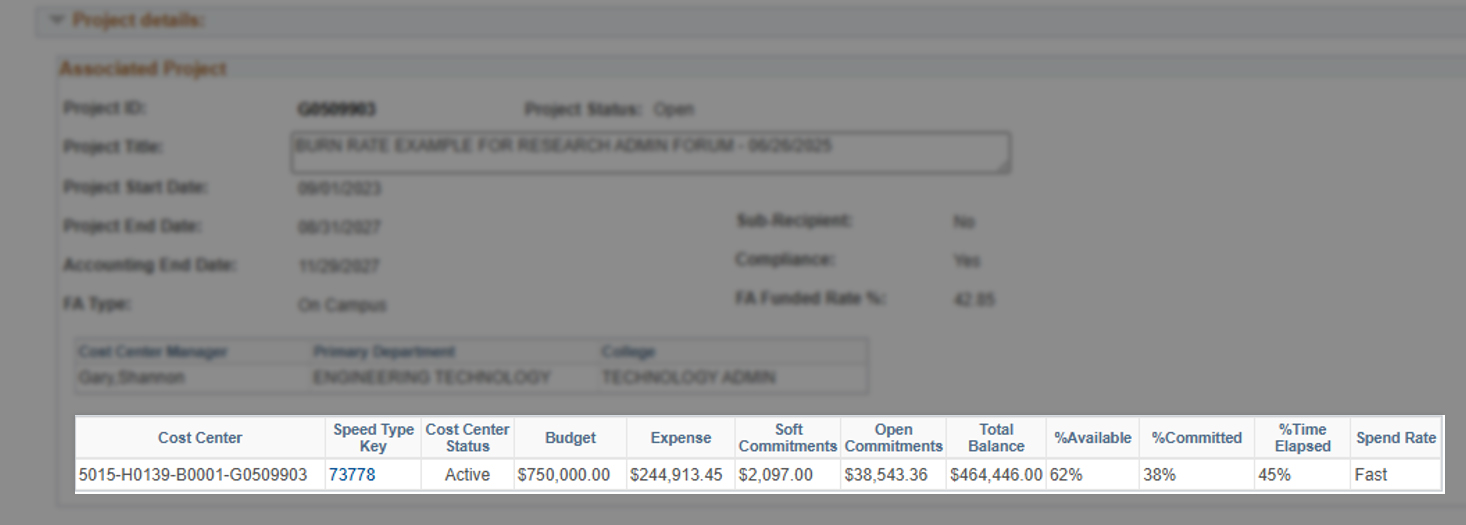
The burn rate is the rate at which a project spends its funding over time. Agencies commonly review burn rates as a key indicator of project financial health, technical progress, and allocation of future funding.
Burn rates are displayed on Award Summary pages in PeopleSoft which can be accessed by going to My Awards in the PI - Research Reports on the PI WorkCenter.
Learn more about how burn rates are calculated in this video on SharePoint.
Equipment Search
The link for this search is located on the bottom left of the portal. This feature provides a searchable page that can identify all equipment purchased on grants that might be in use on an existing project or previously used on an expired award. If the equipment is not currently being used at full capacity by the awarded PI, researchers have the opportunity to share the equipment for use on pending or new projects.
To learn more about faculty equipment, go to the Faculty Equipment page, which is housed under the Core Facilities, where additional equipment is available.