Component instructional guide
Components are interactive tools within Modern Campus that gather user input or generate structured content. Check out how some of the components availible to editors look. Please read below to see how to insert them into your content.
How to Insert a Component
Open the Component Tool: In Modern Campus, choose the page (a .pcf file) that you want to edit. In the Edit tab, click the green "Main Content" button. Locate the Component icon in the taskbar or WYSIWYG toolbar and click it.

(Optional) Select the Component Tag: Click the filter by tag search bar of and choose one or more Component tags to choose from to help with narrowing your search.
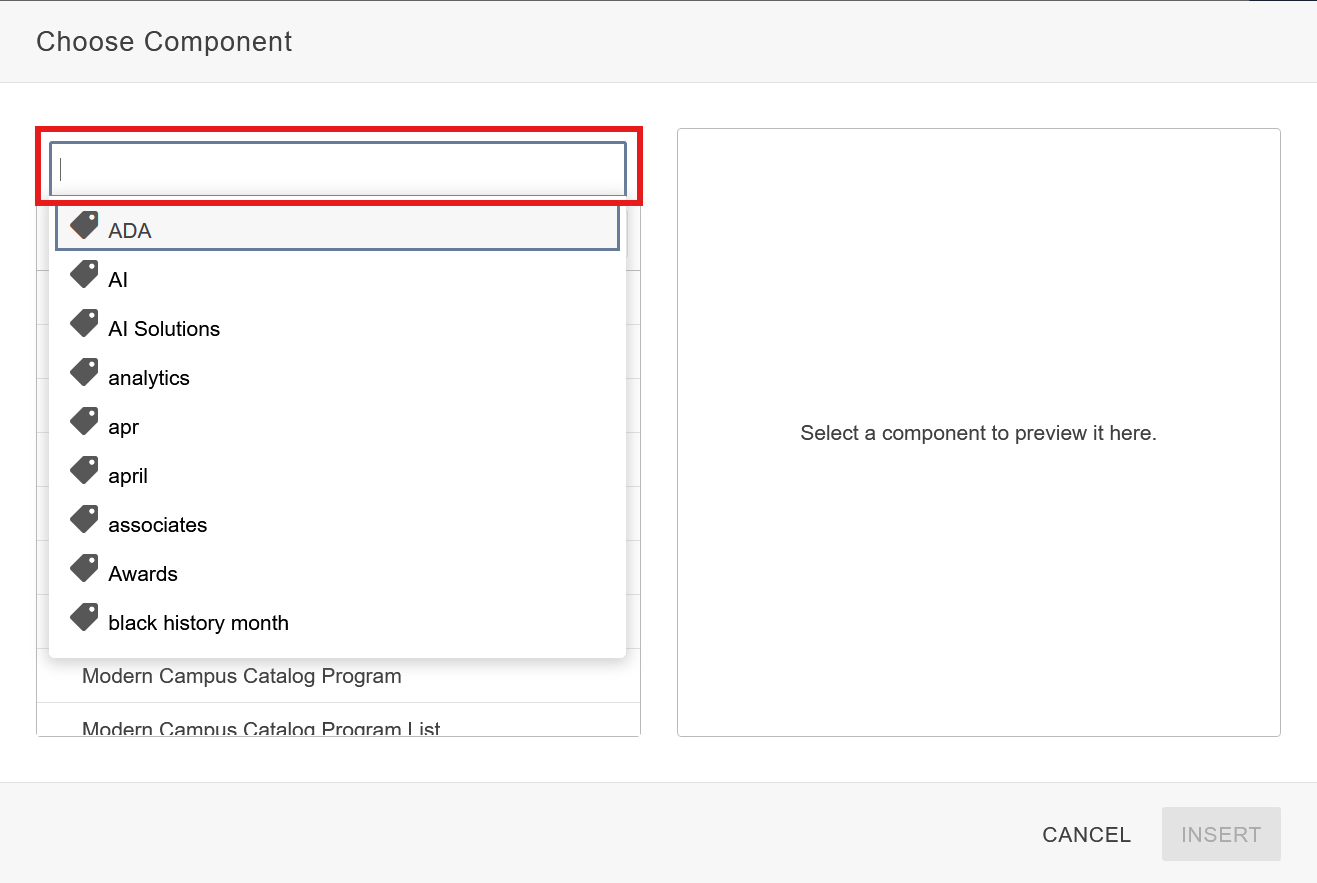
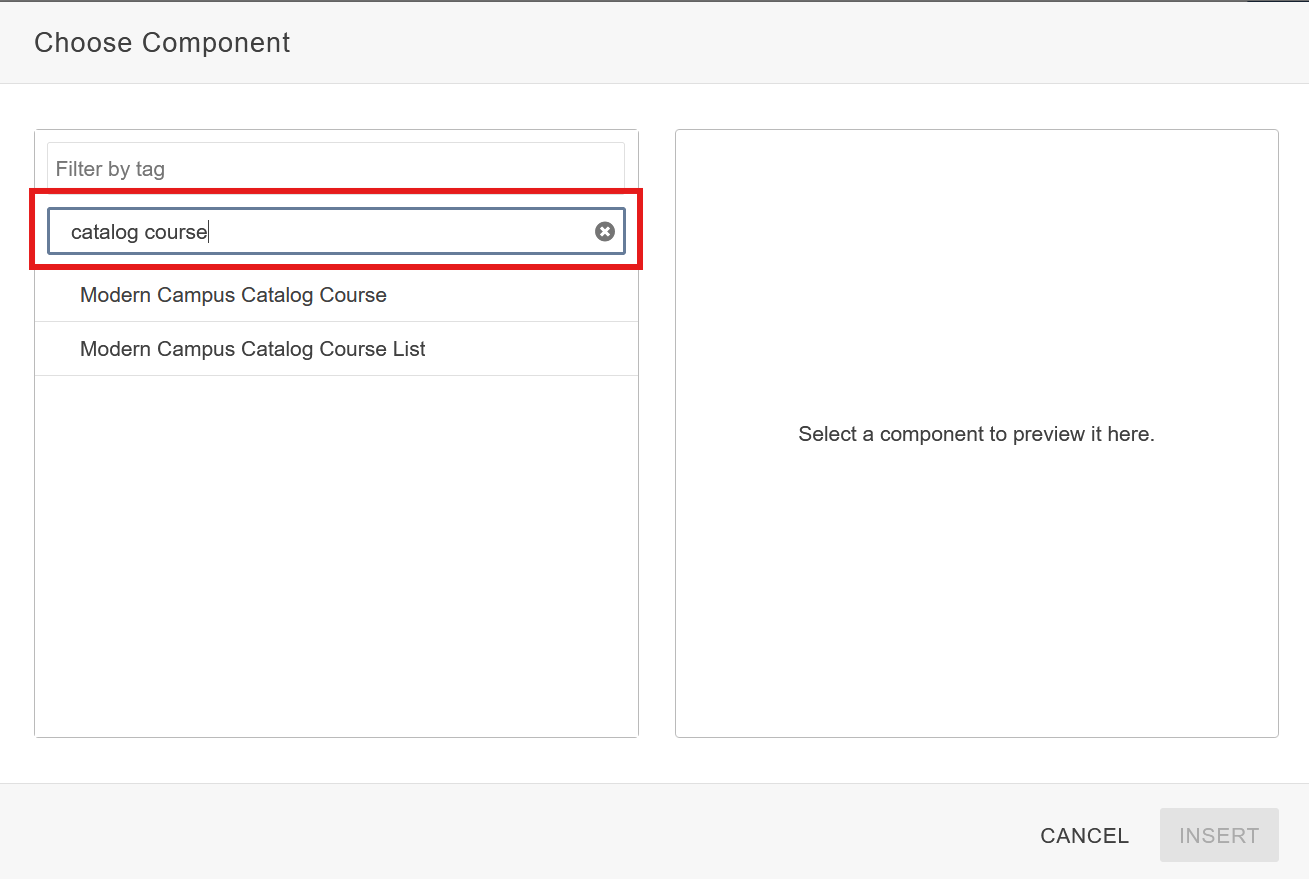
(Optional) Search Bar Filter: You may optionally use the search bar filter to search for a Component specifically. This can be also used with the tag filter to further narrow down results.
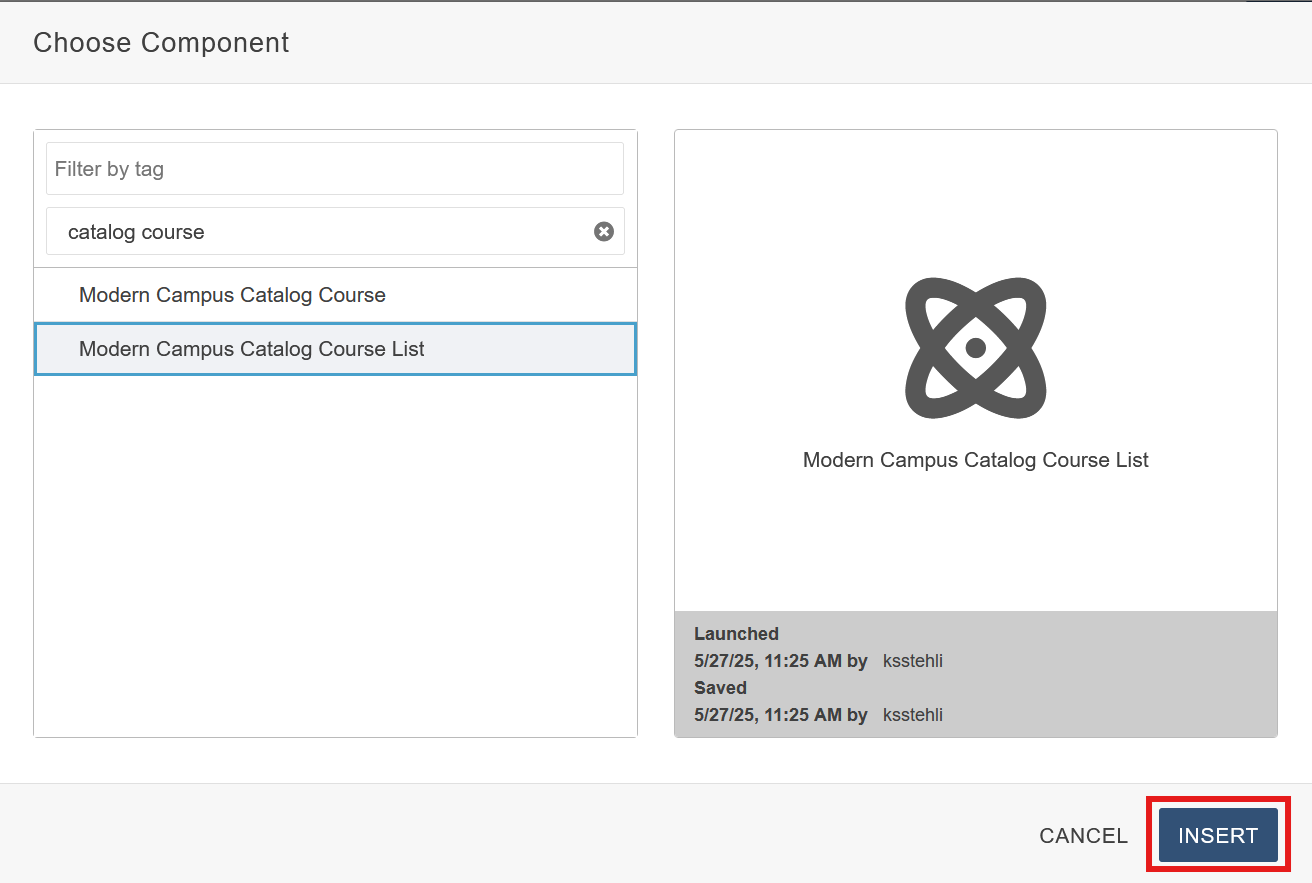
Insert Component: Once you have selected your Component, click the blue insert button to drop it in.
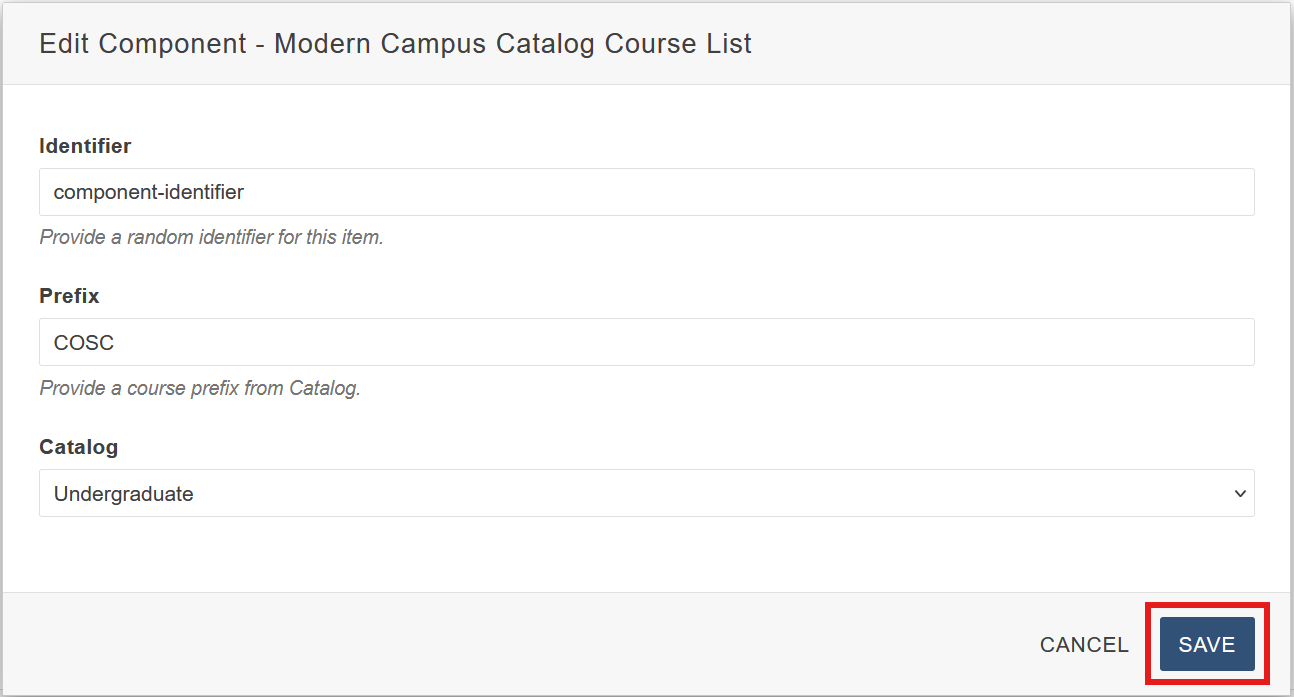
Component Form: Before the Component is dropped it, a form will pop up for the user to fill in. Each Component will have its own form specific to that Component. Once all required fields are filled in, click the save button to drop the Component in.
Once the Component is dropped in, the actual content of the Component will not be visible within the editing window. To make any modifications to the Components form fields, click the Component in the editor and select the pencil icon to make edits.
