Assets instructional guide
Assets are shared content that can be reused across multiple pages or sites. They work similarly to how 'blocks' did in Cascade. In Modern Campus, editors are able to create Web Content and Plain Text Assets. Check out how some of the Assets availible to editors on Landing pages or Interior pages look. Please click a link below to see how to create and insert them into your content.
How to Insert an Asset
Assets in Modern Campus work similarly to "blocks" in Cascade. If you can place your content—whether text or images—into a block, that block (or Asset) can then be deployed within a page wherever the Asset is placed.
Open the Asset Tool: In Modern Campus, choose the page (a .pcf file) that you want to edit. Open the file. In the Edit tab, click the green button of your choosing to begin editing. You can choose from 'Left Sidebar Content’, ‘Right Sidebar Content’ or, most commonly, Main Content’. Locate the Asset icon in the taskbar or WYSIWYG toolbar and click it.

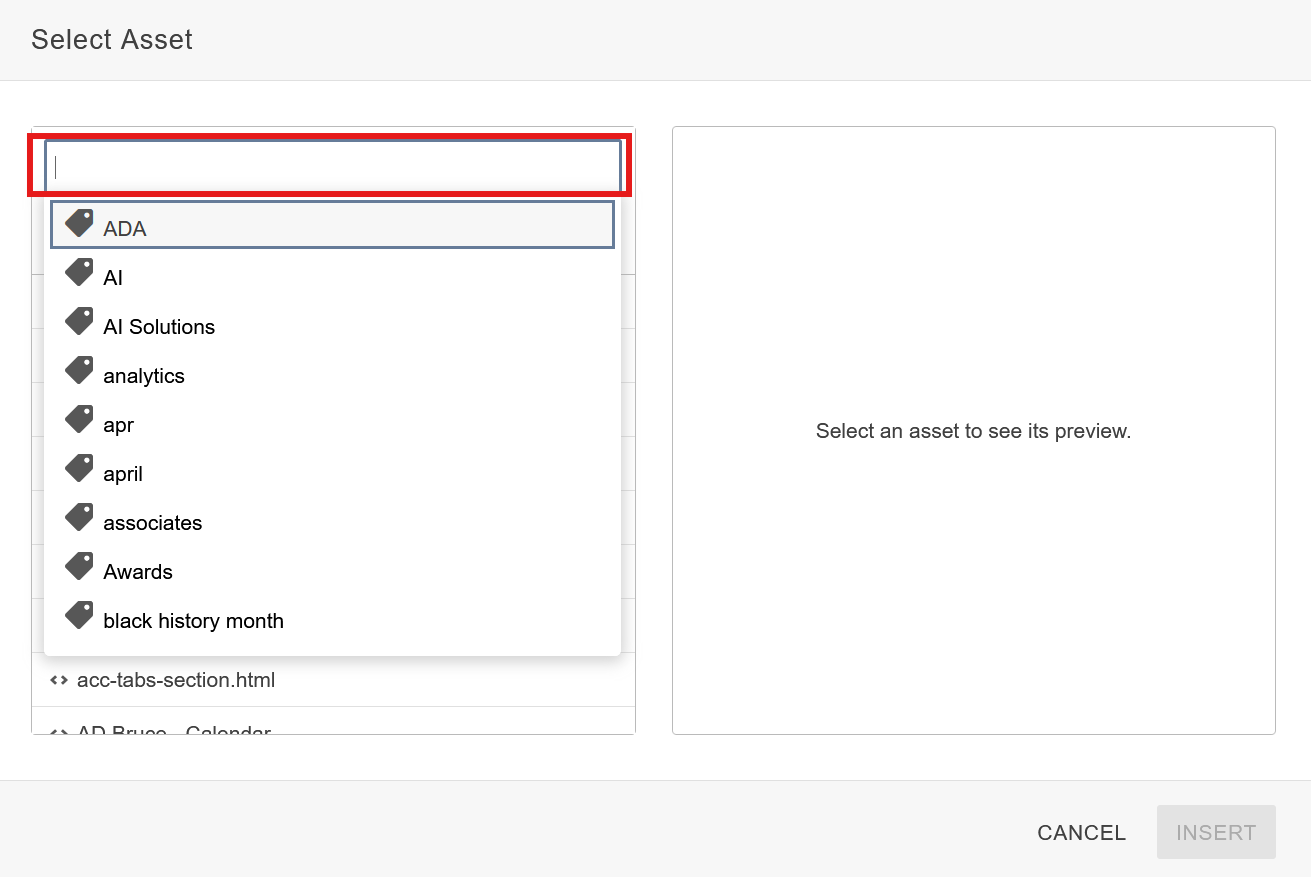
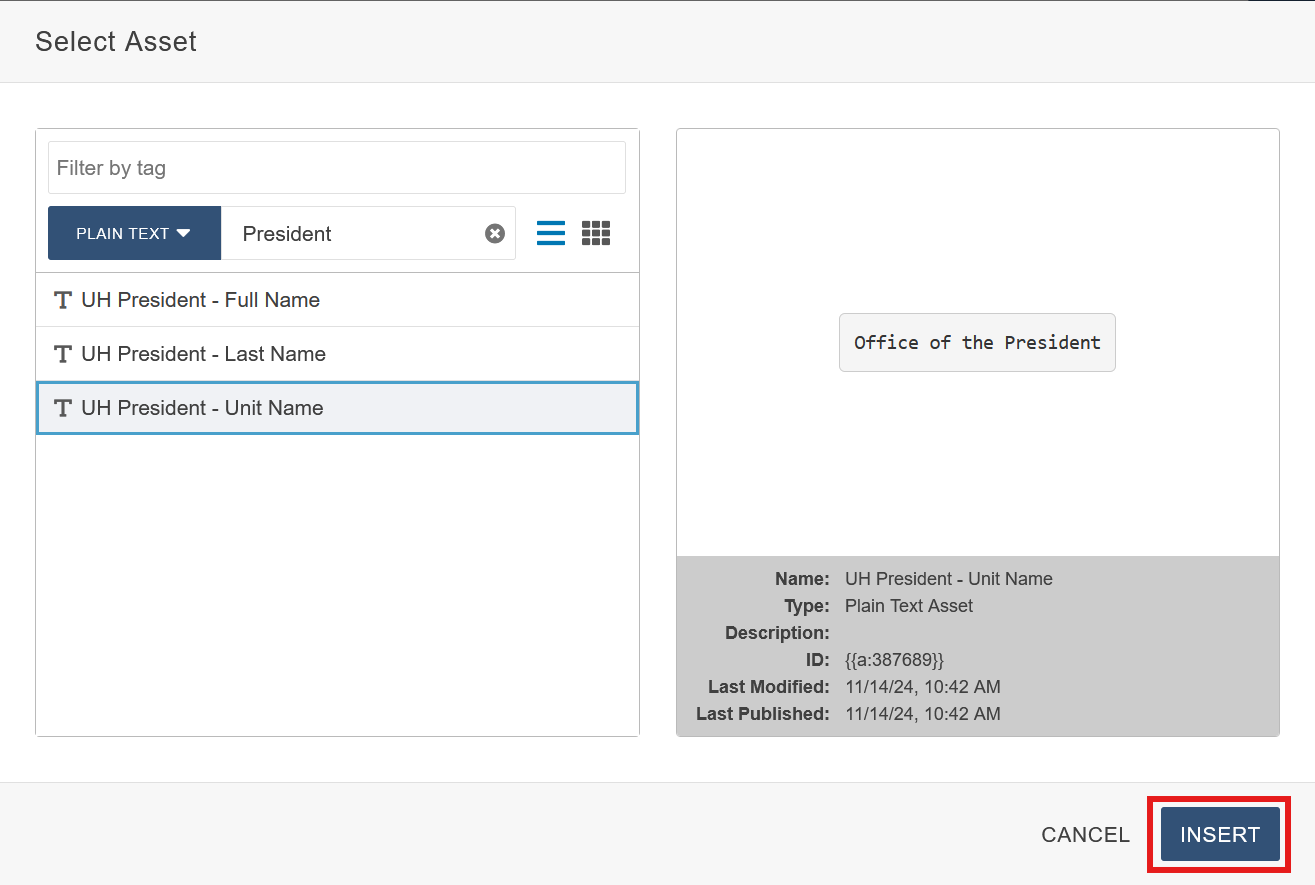
(Optional) Select the Asset Tag: Click the filter by tag search bar of and choose one or more Asset tags to choose from to help with narrowing your search.
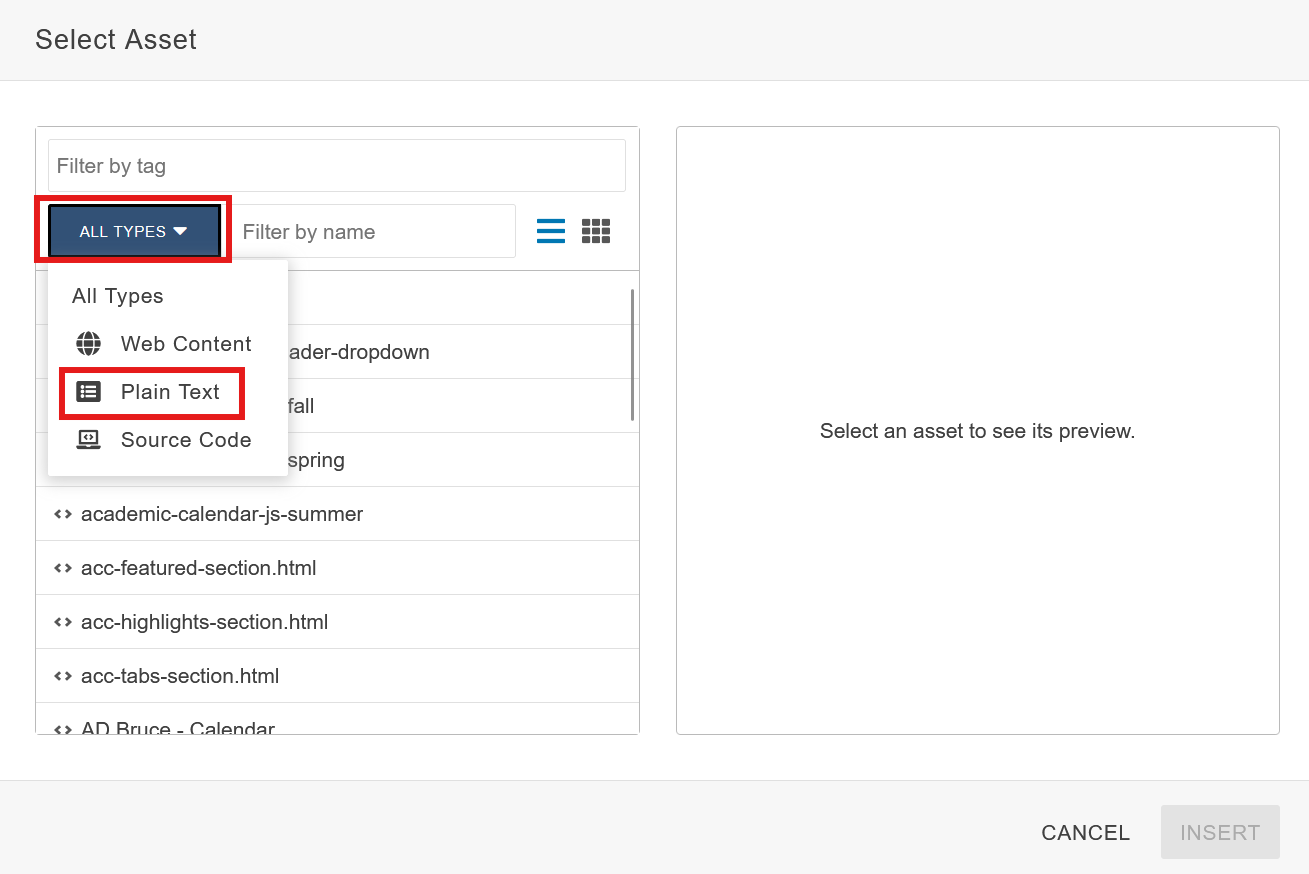
(Optional) Select the Asset Type: Click the drop-down arrow in the top-left corner of the Assets tab and choose an Asset type (ie: Plain Text). By default, all Asset categories are selected making this step optional, but it is helpful in narrowing which Assets to select from.
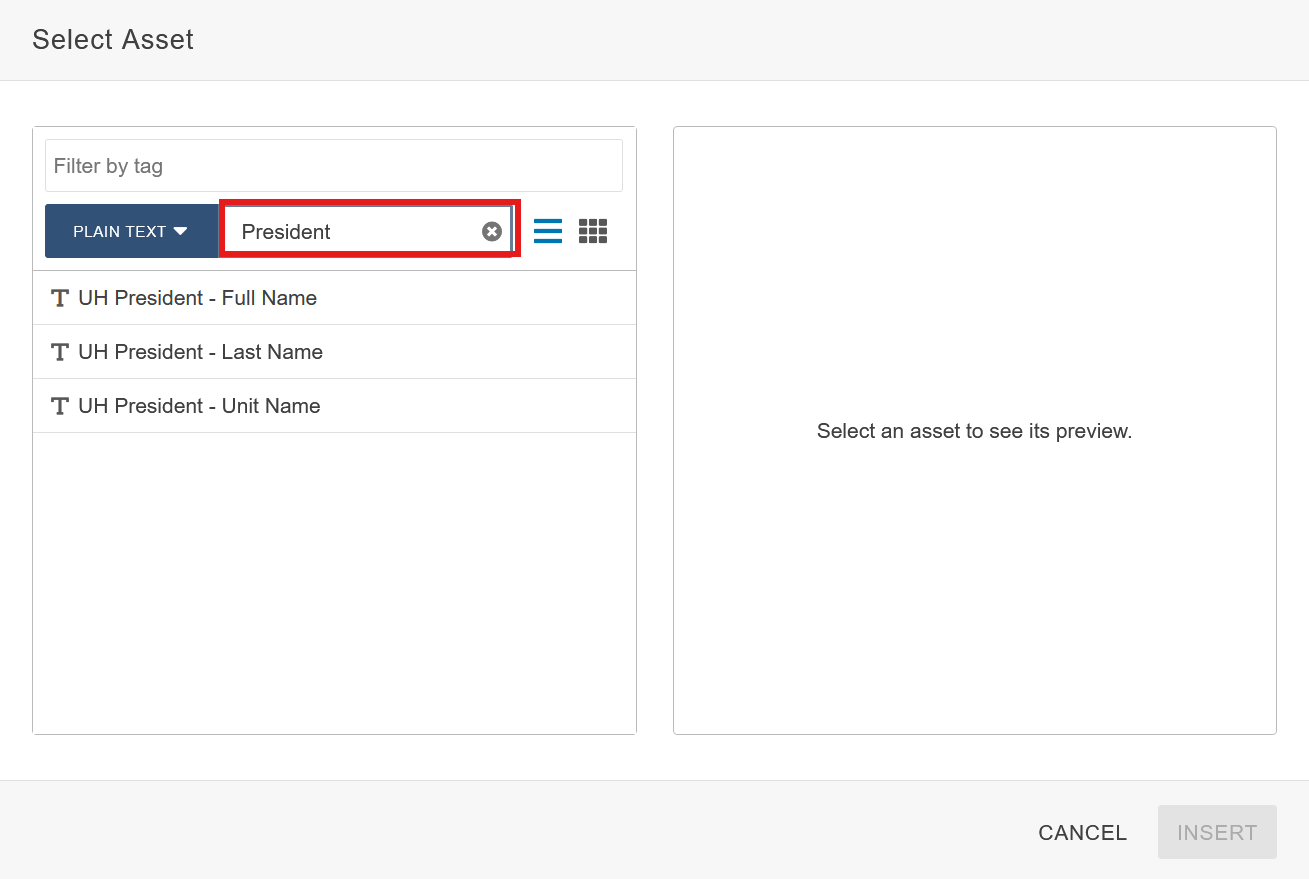
(Optional) Search Bar Filter: You may also use the search bar filter to search for an Asset specifically. This can be used with a Asset type filter to further narrow down results.
Insert Asset: Once you have selected your Asset, click the blue insert button to drop it in.
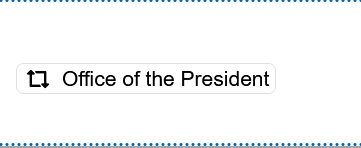
Once the Asset is inserted, it cannot be edited or modified in any way shape or form. The actual Asset is not viewable in the editing window; it just shows the name of the Asset as shown below.
How to create web content assets
Creating a Web Content Asset from a Snippet
What this is: A Snippet that is being turned into a reusable Asset for use across a site.
Inside of Modern Campus CMS, navigate to Pages.
Click the blue New button in the top right corner.
Select Web Content.

Type name and description of your new Asset.
Click the Snippet puzzle piece icon from the WYSIWYG toolbar.
Choose the Snippet you want to create into a reusable Asset. If the Snippet needs to be configured then do that. When finished, click Create.
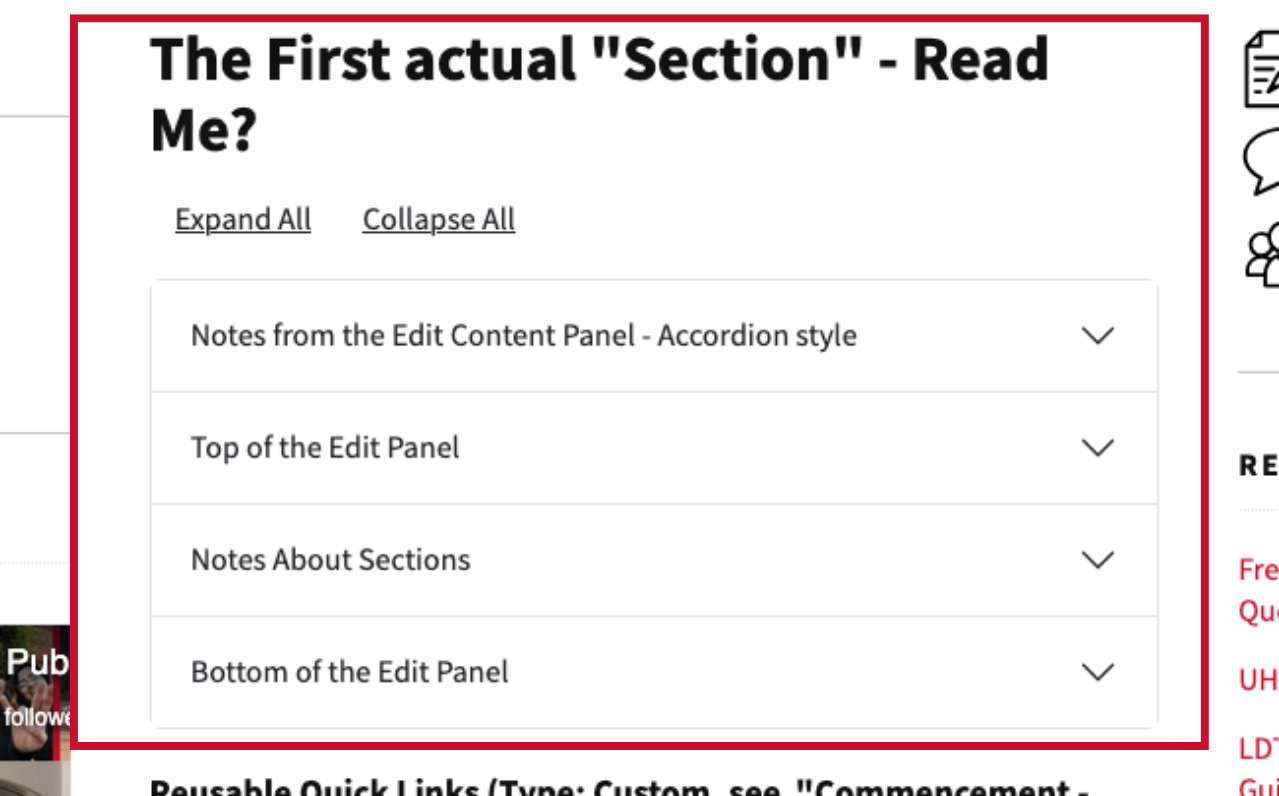
For accordions, for example, you will have to enter the information now. Be it FAQS or other useful info.

Give it one last look.
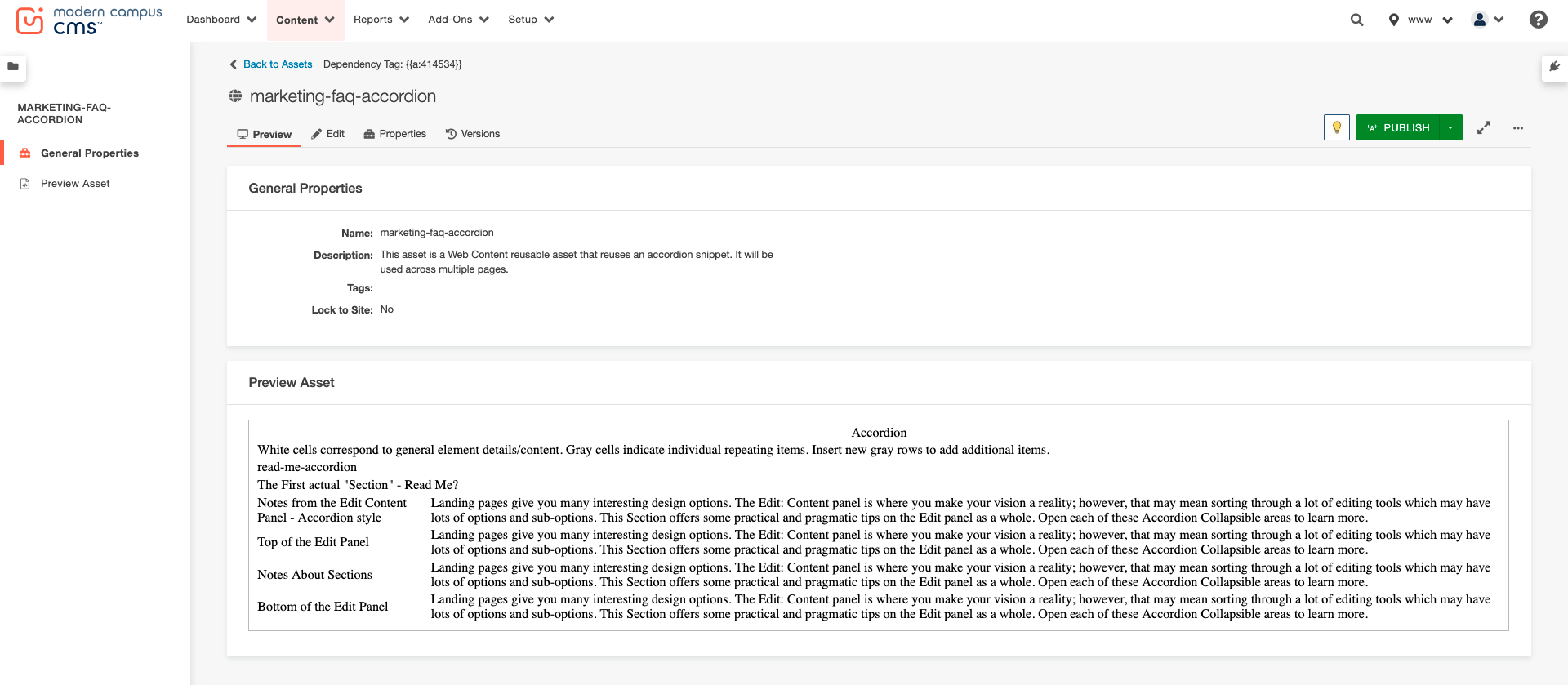
Click on Publish.
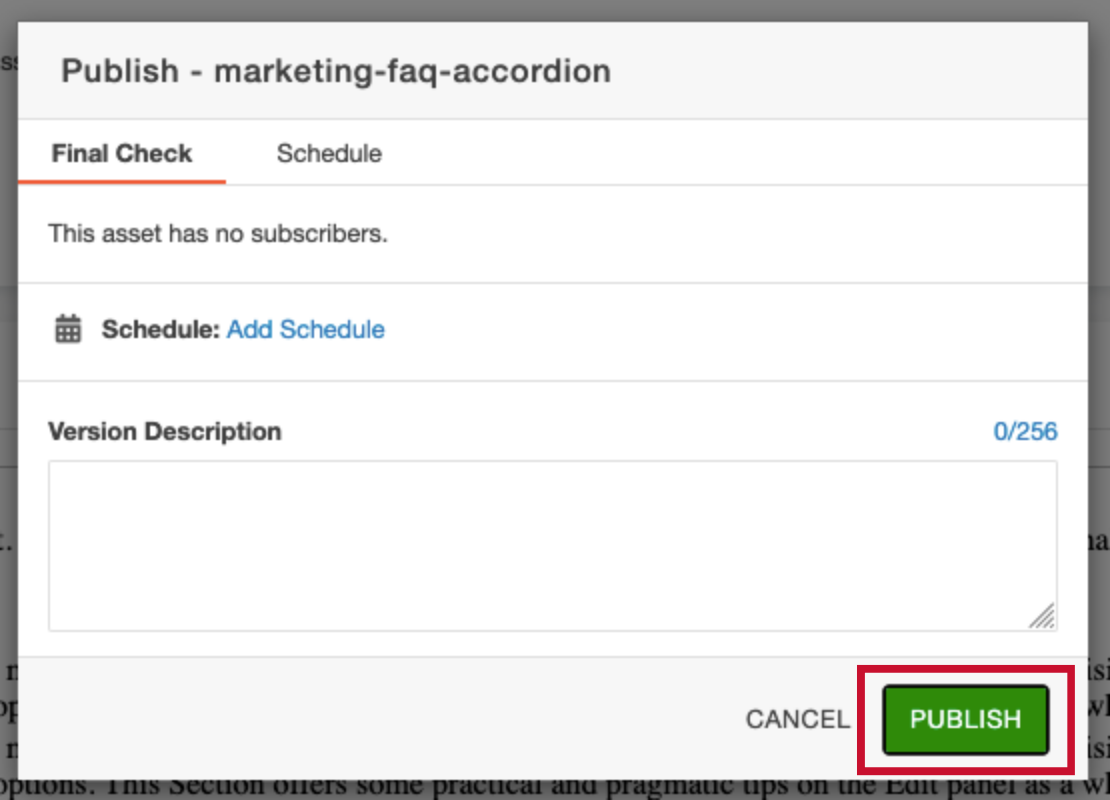
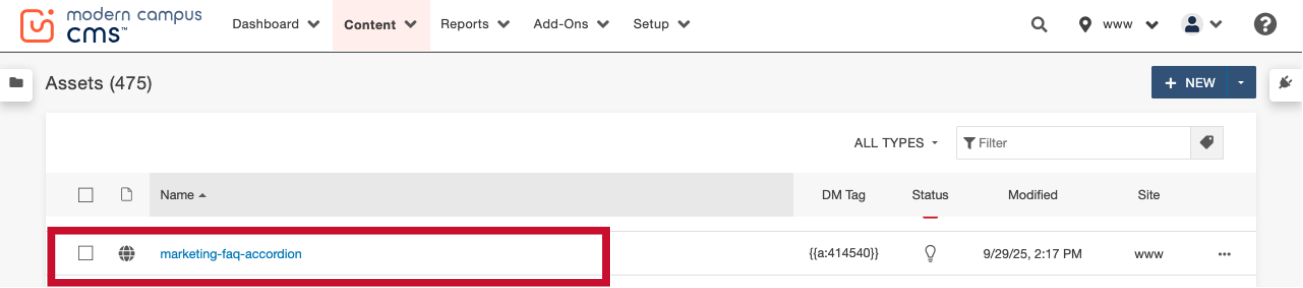
Here it is on the Content > Assets page.
Below is the finished Asset if you were to use an accordion type Snippet as a Web Content Asset.
Creating a Web Content Asset from Text with Links
What this is: A content block with information that is being turned into a reusable Asset for use across a site.
Inside of Modern Campus CMS, navigate to Pages.
Click the blue New button in the top right corner.
Select Web Content.
Type name and description of your new Asset.
Type your text in the box below the WYSIWYG toolbar. To use a link select the link icon. Refer here for help on how to create links in Modern Campus. When finished, click Create.
Give it one last look.
Click on Publish.
Asian American Studies Center
University of Houston
McElhinney Hall
3623 Cullen Blvd., Room 2003
Houston, TX 77204-5023
Plain Text Assets
Creating a Plain Text Asset
What this is: A text block that is being turned into a reusable Asset for use across a site.
Inside of Modern Campus CMS, navigate to Pages.
Click the blue New button in the top right corner.

Select Plain Text.
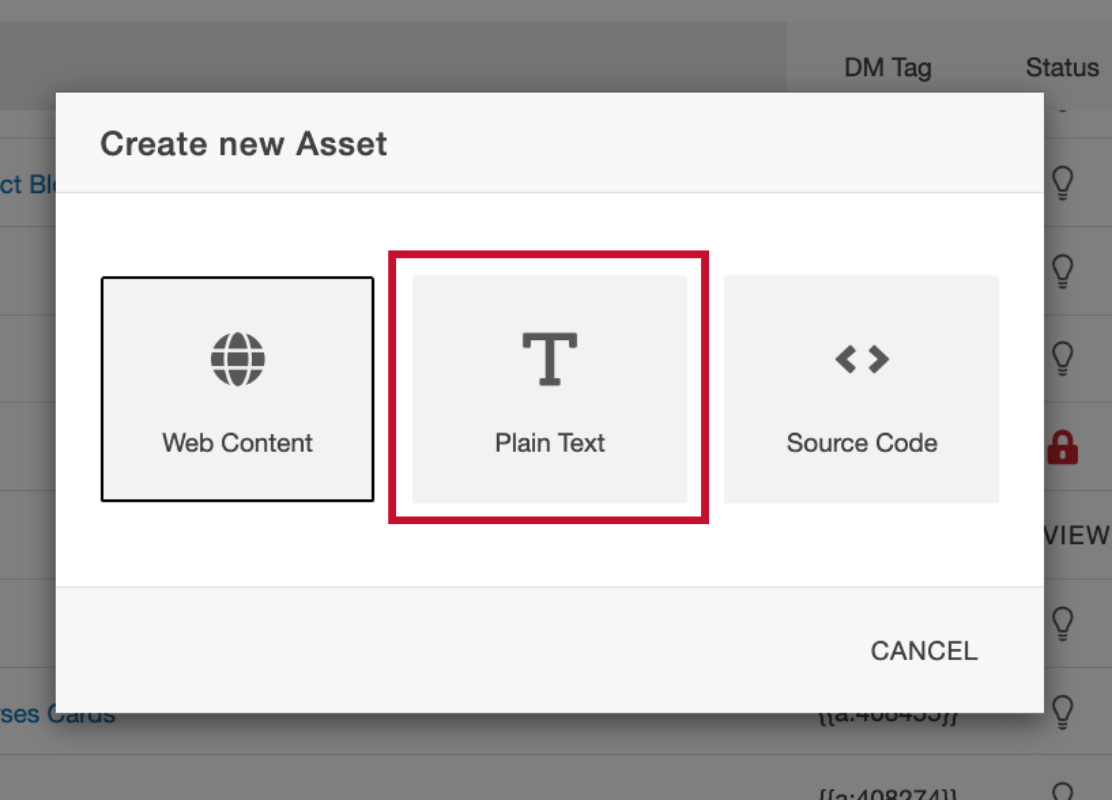
Type name and description of your new Asset.

Type your text in the box below the WYSIWYG toolbar. When finished, click Create.
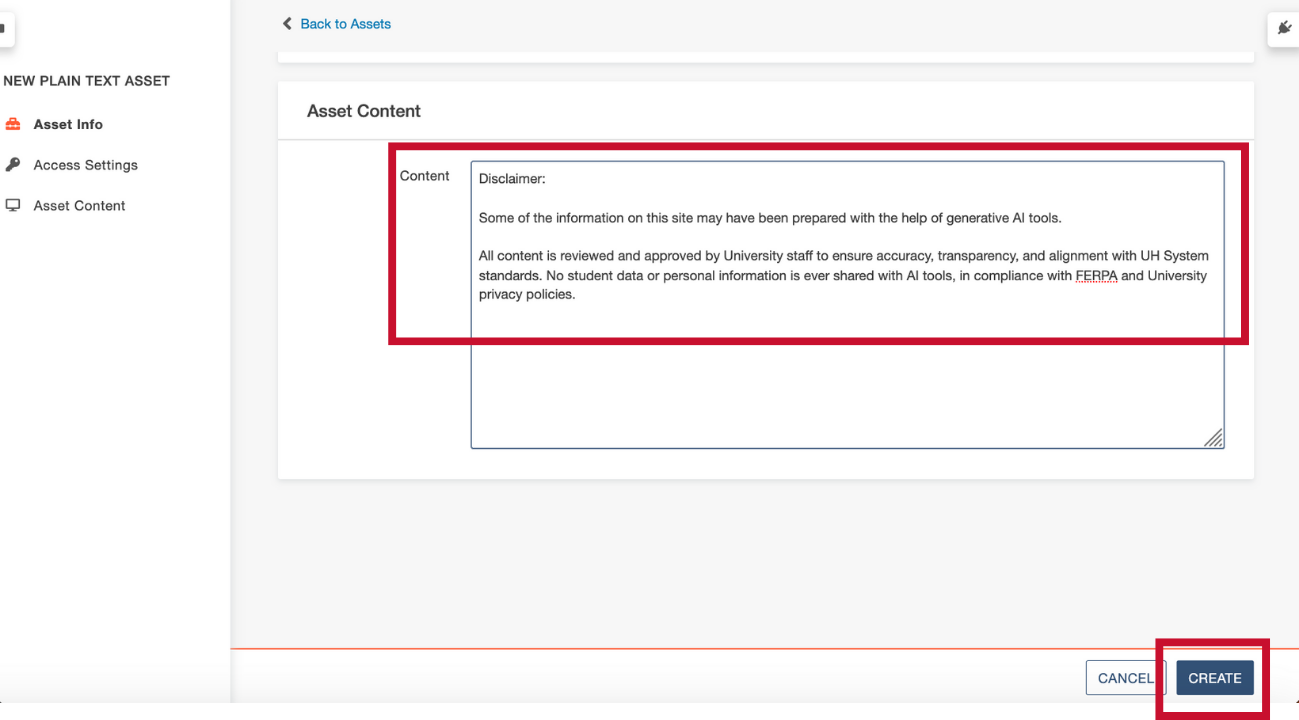
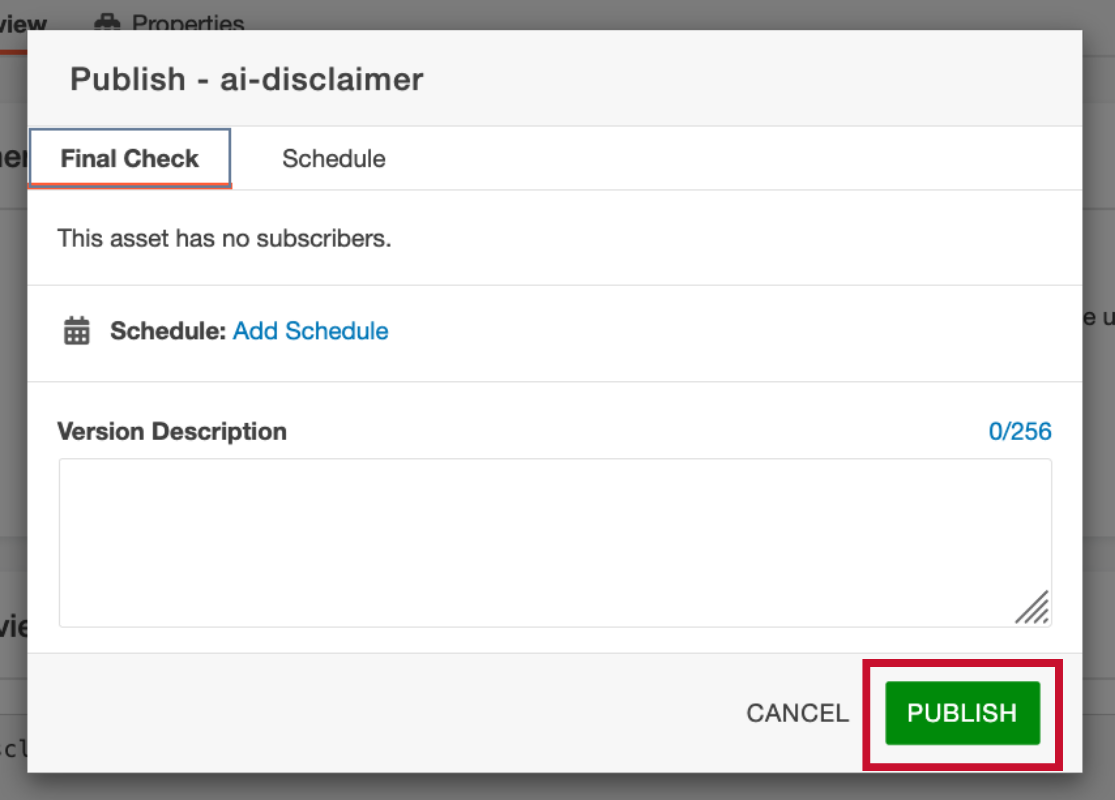
Click on Publish.
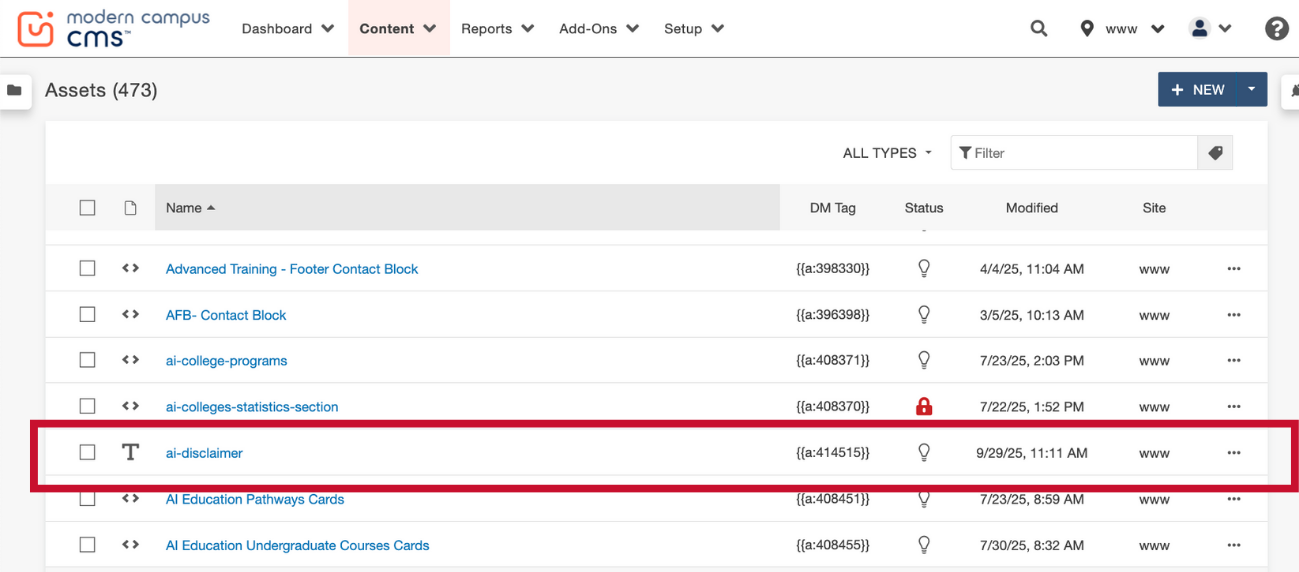
Here it is on the Content > Assets page.
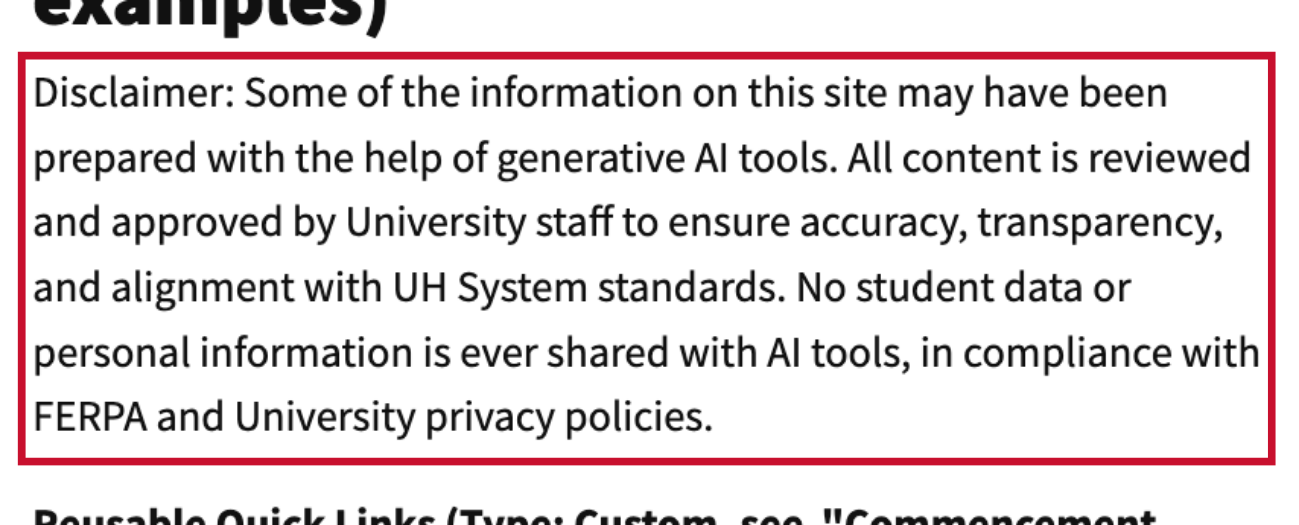
Below is the finished Asset if you were to use a disclaimer type Snippet as a Plain Text Asset.