Video Call or Video Conference - Skype for Business (SFB) for Mac


Make a Video Call
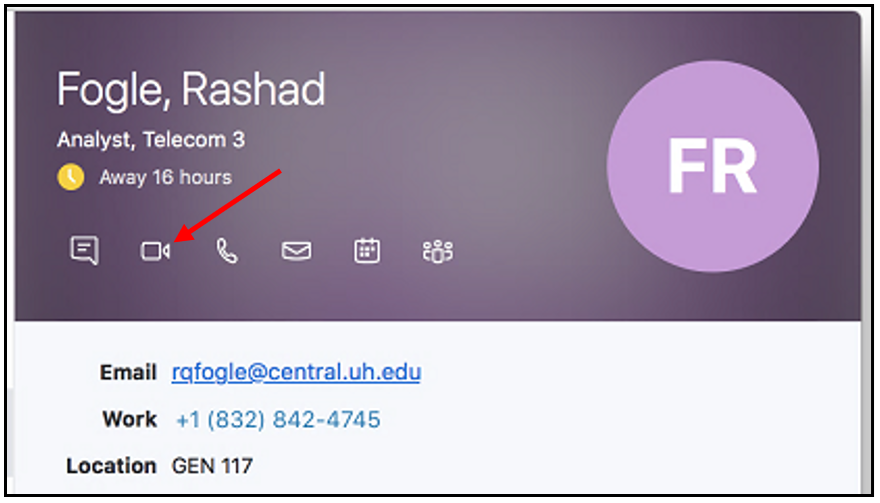
To make a video call:
  1. In the SFB window, click a Contact.
  2. Select Start a Video Call from the menu.
  3. To end a video call, close the Conversation.
videocall.png
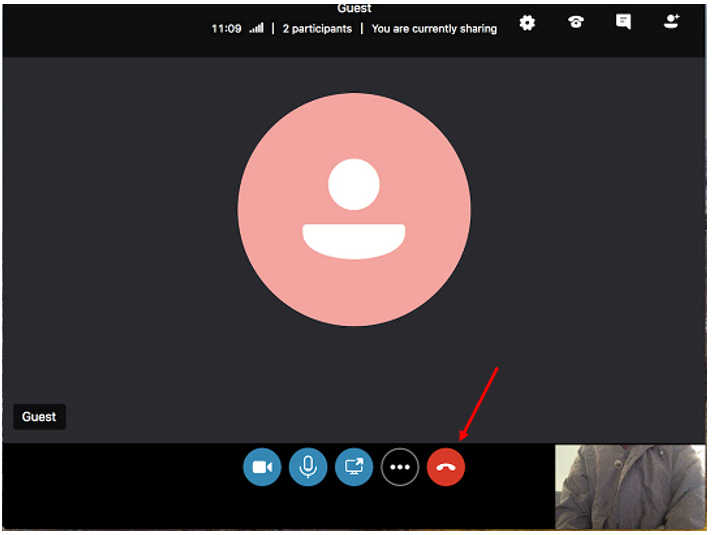
Video Tools
Video tools are shown below the video image.
From left to right:
  • Start Video
  • Mute
  • Share Screen
  • More Options
  • Hang Up
/infotech/services/uc/video/video-sfb/2011/guest.png
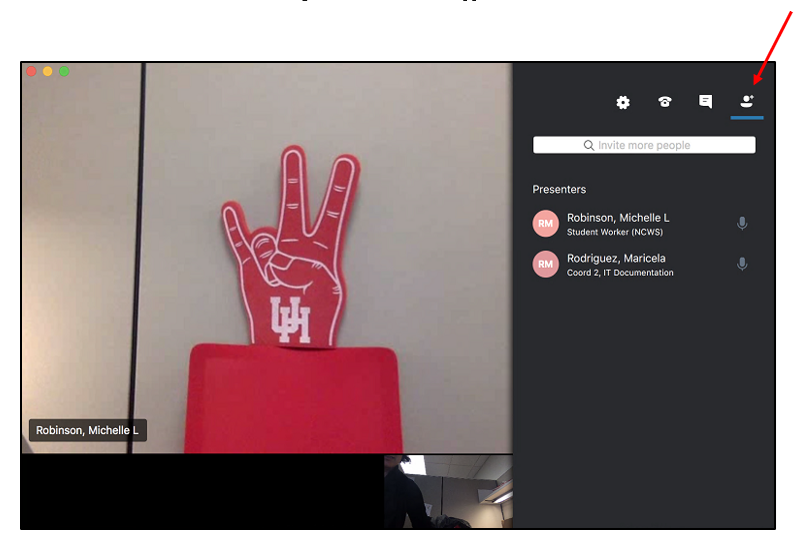
Escalate to a Video Conference
To add participants:
  • Click People.
  • Enter a contact name or a phone number.
  • Double click the contact name or phone number that appears underneath the search field.
/infotech/services/uc/video/video-sfb/2011/uh-3.png
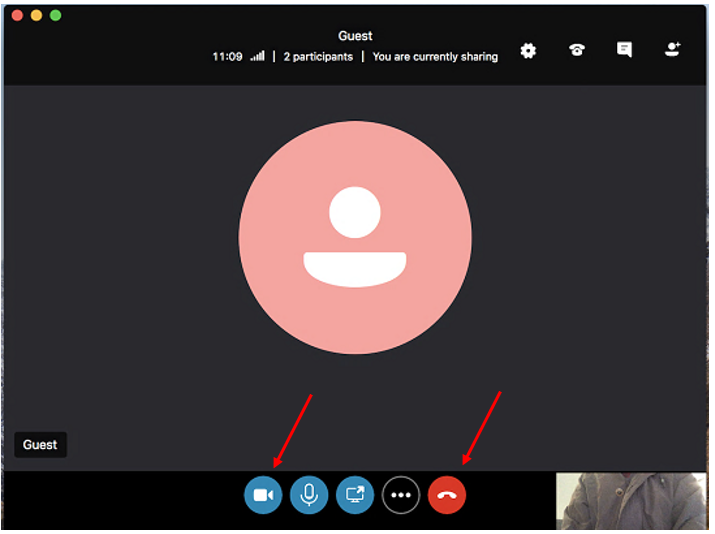
End a Video Call/Conference
To end video, but keep audio, click the Video icon.

To end the entire video call or conference, click the red Hang up icon.
/infotech/services/uc/video/video-sfb/2011/guest2.png


SFB Video Call or Video Conference using a Mac


For Skype for Business (SFB) related questions or problems, send email to sfbsupport@uh.edu.