Installing the Genesys Application on your Desktop
1. Go here: https://apps.mypurecloud.com/directory-windows/.
2. Click Download x64.
3. Browse and look for the location to save the file.
4. Click Save.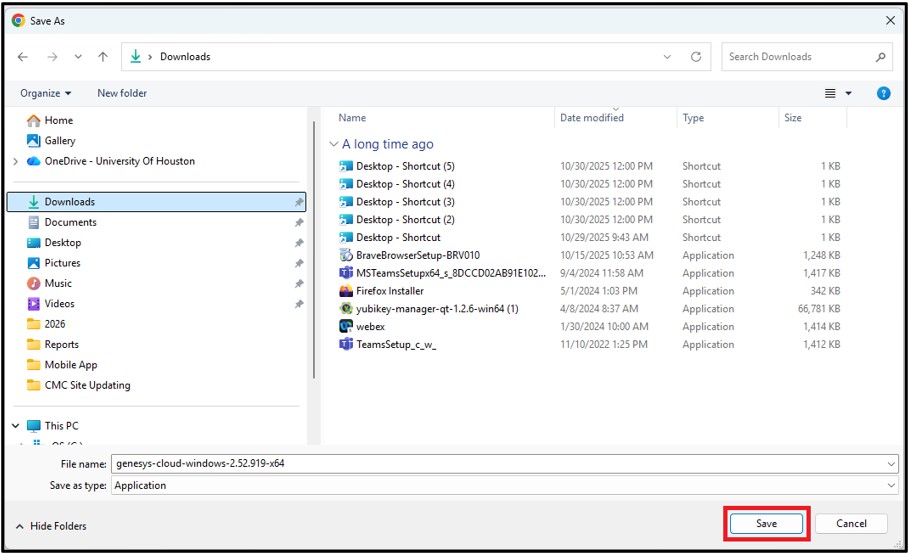
5. Click the Download arrow.
6. Click the File. 
7. Click Install. 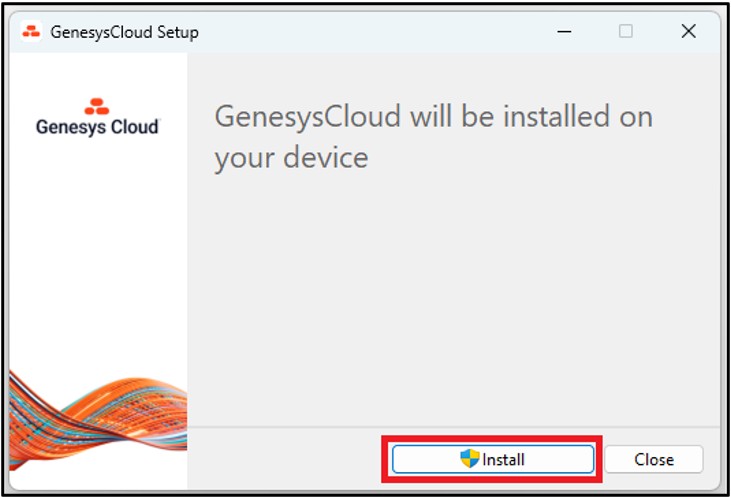
8. Click Yes.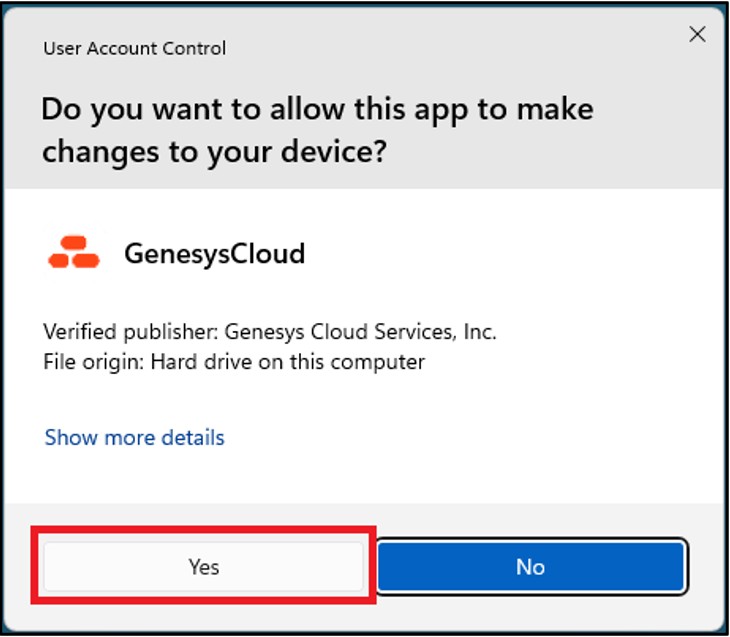
Note: Genesys is being installed. Please wait until the installation is complete.
9. Click Launch.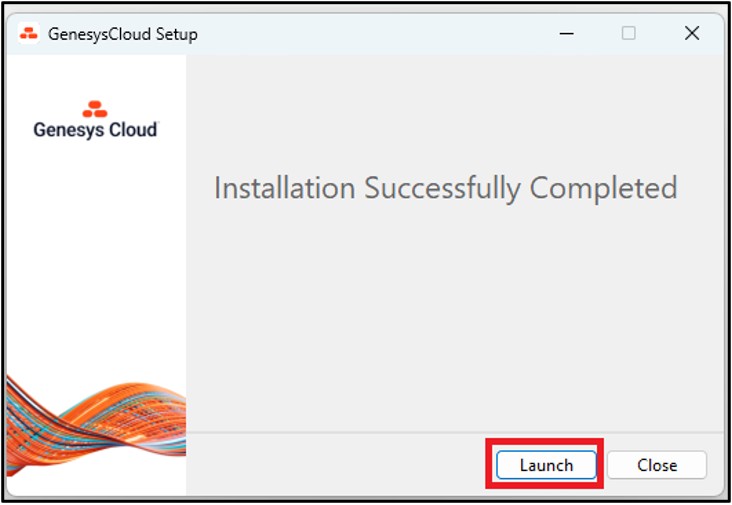
10. Click change.
11. Select America (US West).
12. Click Change organization.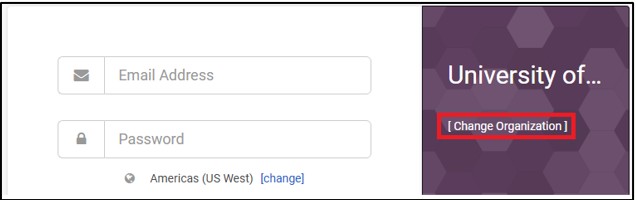
13. Enter uohsystems.
14. Click Next.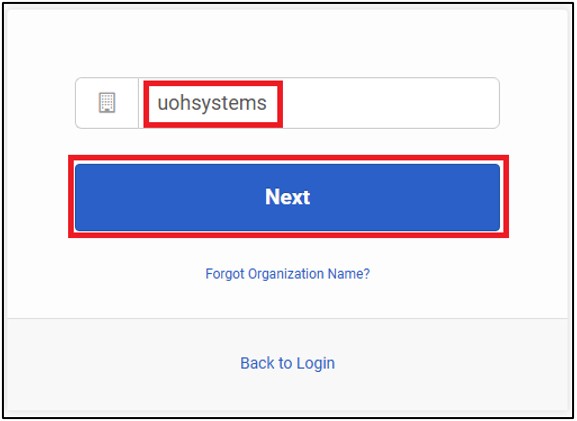
15. Click the Microsoft icon.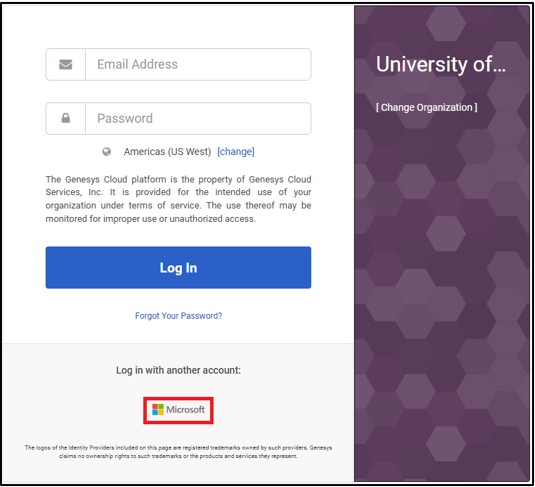
16. Enter your Microsoft 365 email address.
17. Click Next.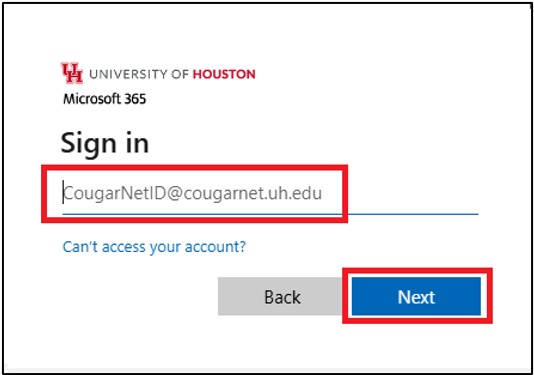
18. Enter your CougarNet password.
19. Click Sign in.
20. In the Microsoft Authenticator app, enter the number displayed on the screen.
21. Tap Done on the Microsoft Authenticator app. 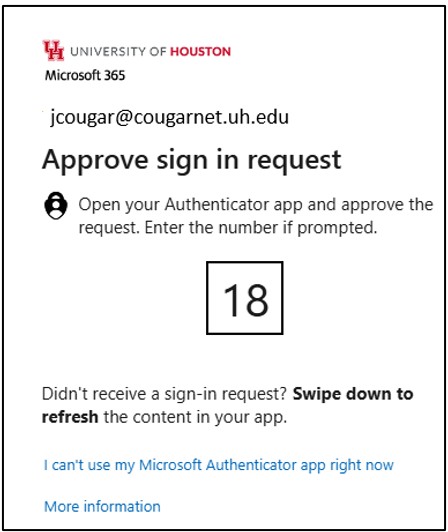
For Microsoft Teams related questions or problems, send email to unifiedcommunications@uh.edu.