Genesys Frequently Asked Questions
What is Genesys?
Answer:
Genesys is the University of Houston's cloud-based call center solution. It provides tools for handling incoming and outgoing communications and managing customer interactions.
For additional information, visit the Genesys Resource Center: https://help.mypurecloud.com/articles/genesys-cloud/
What is my username and password for Genesys?
Answer:
Use your Microsoft 365 email address (CougarNetID@cougarnet.uh.edu) and CougarNet password to sign in to Genesys.
How do I sign into Genesys?
Answer:
For step-by-step instructions on signing in to Genesys, see the Genesys Sign In Guide:
/infotech/services/uc/training/genesyssignin/
What is the web URL link for Genesys?
Answer:
Access Genesys at: https://login.usw2.pure.cloud/#/authenticate-adv/org/uohsystems
Is there a Genesys desktop version?
Answer:
Yes. Genesys is available as a desktop application.
For installation instructions, see the Genesys Desktop Application Installation Guide:
/infotech/services/uc/training/installinggenesys/
I can't sign in to Genesys. What should I do?
Answer:
If you're unable to sign in to Genesys, try the following:
-
Clear your web browser's cache and cookies.
-
Try signing in using a different web browser.
-
Try using the Genesys desktop application.
-
Verify that your CougarNet password is correct or reset your CougarNet password if needed.
If you are still unable to sign in, contact the IT Support Center at 713-743-1411
or chat with a Live Agent.
I am signed into Genesys, why am I not getting calls?
Answer:
To receive inbound calls in Genesys, your status must be set to On Queue.
If you are not receiving calls:
1. Verify that the On Queue toggle is enabled.
2. If the toggle is off, select On Queue to make yourself available for inbound calls.
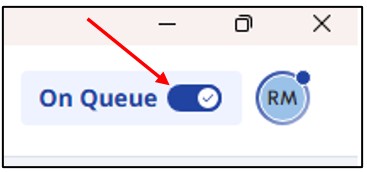
Note: When On Queue is turned off, Genesys will not route inbound calls to you.
I placed myself on available, but I am not getting calls.
Answer:
The Available status does not route inbound calls to you. To receive calls, you must enable the
On Queue status. When On Queue is turned on, you are available to receive inbound calls assigned to your queue.
How do I transfer a call in Genesys?
Answer:
Use transfer to transfer a call directly to another user, phone number, external contact, or queue without speaking to the recipient first.
1. From the current call, select the arrow.
2. Type the phone number in the Enter name field and click the arrow.

Note: Use the full phone number. Genesys does not support extension-only numbers.
I want to take a lunch break, how do I set my status in Genesys?
Answer:
To set the status for a lunch break:
1. You can select the status in Genesys from the people icon.
2. Select Available. 
3. Select Meal.
Note: When you return from your lunch break, make sure to be on the on Queue status to receive an inbound call.
For Microsoft Teams related questions or problems, send email to unifiedcommunications@uh.edu.