One default content Section is provided as a starter kit for newly created Landing-type
pages (e.g. from the Add Content menu). Each Section has its own sub-sets of multivarious content management options. Some common-type
examples are included on this page so you can compare the page preview and the published
page to the Edit panel setups. Visually, each Section may appear to be its own Row
or horizontal band across the webpage.
You don't need as many Sections as you see on this page. Less than 5 Sections (aim for 1 to 3) makes it easier for your site visitors to appreciate your content.
The Edit Panel will re-draw itself as you work: selecting options, adding and deleting
segments, etc. Different options need different tools, which may not show until the option is selected. TIPS: Make note of which of multiple Sections you are currently working on (e.g. 3 of
7), so you can find it again and re-orient yourself quickly (and find the sub-sections
you need more easily!). Close up any other Sections or sub-sections when you're not
working on them at the moment. See also: Edit Panel - Working with 'Boxed Sets' how-to page.
Any content Section can be used to create new, separate content Sections. To create additional Sections, click on the green plus-sign from the top bar of any
Section. By default, the new, "blank" section will appear directly below the Section
used to create it. Once there are multiple Sections, re-ordering tools will become
available to allow you to change the order in which they appear on the page: 
Each Section can have its own separate background color and/or image (optional). Color choices: None, Light Gray, Cream, Brick, Slate. Any background image chosen
should not interfere with readability/accessibility of the content. The 'fixed' background
option (content 'scrolls over' the fixed image) can add visual interest to the page
if used judiciously. See Edit panel illustration of Section Settings options.
TIP: ask for a Marcom review if you're not sure how well your choices work visually vs for accessibility vs UHS/UH Brand - contact either webmarketing@uh.edu and/or branding@central.uh.edu for consultation. See also: Marcom's Web Style Guidelines for more about the UH Brand color palette.
Each Section can have its own Section-ID (optional). A Section ID will be needed for any Section which participates in the On-Page Navigation
option. Section IDs may also be used for leveraging custom CSS styles if desired.
If used on your page, the On-Page Navigation appears for your site visitors as they scroll down the page past the header, displaying at
the top of the page in a Brick-colored band containing the same-page links. This page has an extraordinary number of sections,
and the On-Page Navigation items take up more space on the page than usual, so you
may need to scroll back up a bit to see the top of the material you're jumping to,
if you are using a desktop monitor width screen.
ID TIPS: similar rules to system-naming conventions: case-sensitive, so easiest to keep them
all-lowercase; NO SPACES; must be unique within the webpage's code. The ID text alone
will be used in the Section's ID text field. Use the exactly matching ID text for
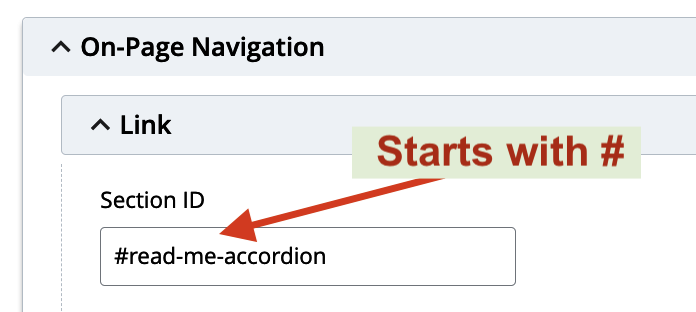
the On-Page Navigation, but for the On-Page Navigation Link, put a "#" character at
the start of the ID (again, NO SPACES here, either).