OneDrive & SharePoint
OneDrive and SharePoint make it easy for UH faculty to collaborate not only within the university but also with external guests. Whether working with research partners, guest lecturers, or industry collaborators, these tools allow you to securely share files, co-edit documents in real time, and manage permissions to control access. OneDrive is perfect for sharing individual files, while SharePoint provides a structured workspace for teams to collaborate on projects with both internal and external users.
With the right sharing settings, you can ensure smooth and secure collaboration with guests while maintaining control over your content.
Select one of the following to learn about:
- Sharing a file or folder in either OneDrive or SharePoint
- Setting up OneDrive to act like Dropbox
- OneDrive Best Practices
Sharing Files or Folders on either OneDrive or SharePoint
To set permissions for a OneDrive or SharePoint document or file for a guest:
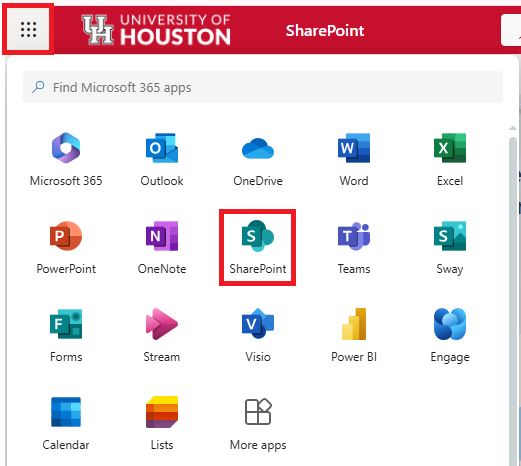
1. Open OneDrive or SharePoint in your browser or desktop app.
Note: this example image is for OneDrive.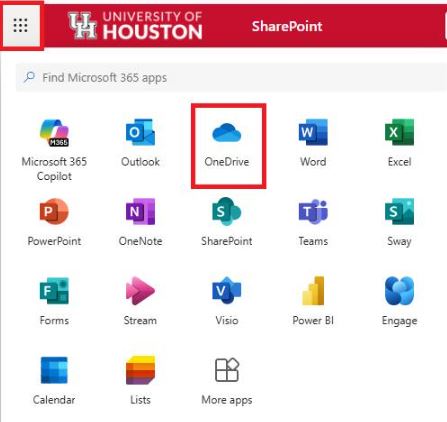
This example image is for SharePoint.
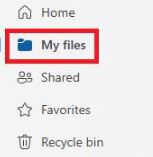
2. Select a file you want to share:
- On OneDrive select My files.
- On SharePoint select the File or Folder you want to share.
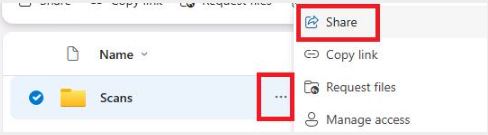
3. Click the three dots on it or select it, then click Share.
4. Click Links Settings.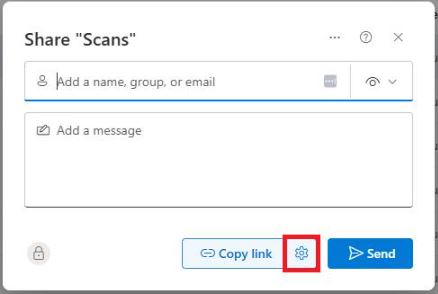
5. In the Share window, click the Anyone option.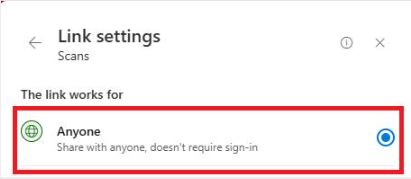
6. Select the drop down arrow to give the external user permissions.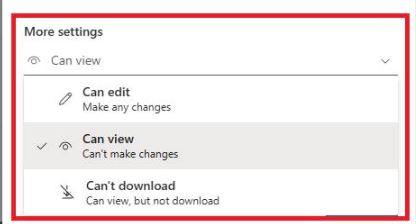
7. Click Apply.
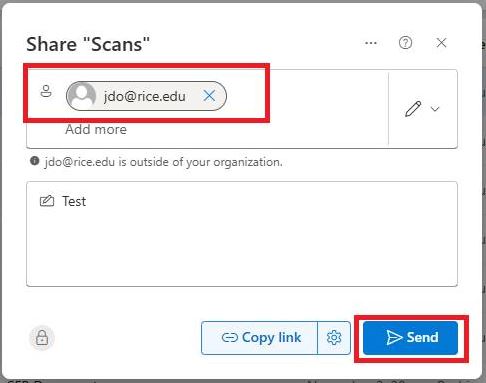
8. Enter the external email address.
9. Click Send.
How to make OneDrive act like Dropbox:
1. Select My files.
2. Click Add new.
3. Select Folder.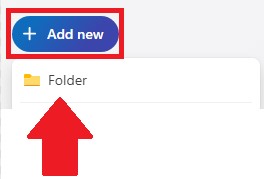
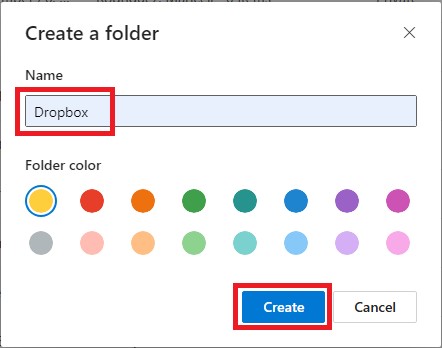
4. Type Dropbox.
5. Click Create.
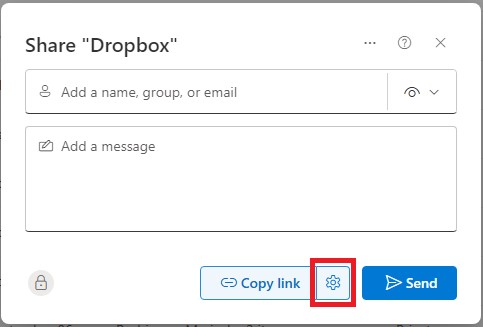
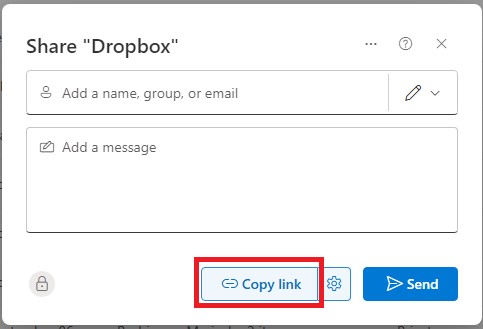
6. Click Share.

7. Click Link Settings.
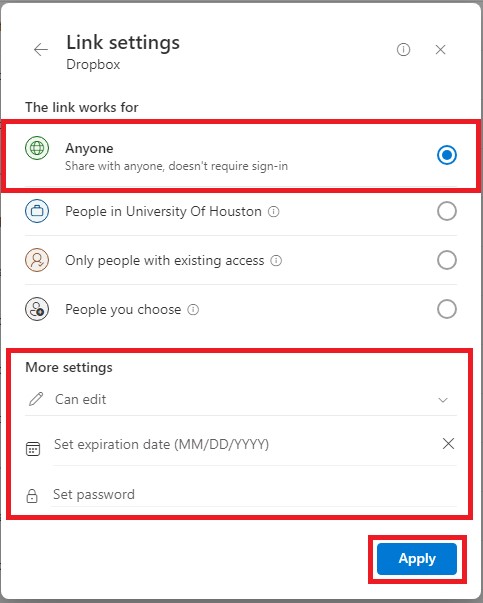
8. Select Anyone.
9. Select Can edit.
10. Set an expiration date and a password. (Optional)
11. Click Apply.
12. Click Copy link.
13. Send the link.
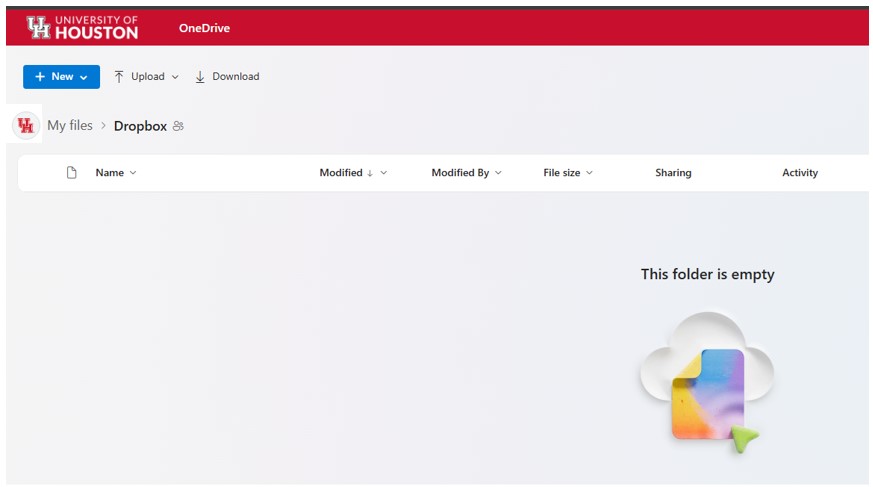
Note: This is what the guest will see when they click the link.
|
Best Practice |
Description |
|---|---|
|
Share Files with Specific Permissions |
When collaborating, set appropriate permissions (view or edit) to control access. |
|
Use "Share" Instead of Attachments |
Send links to files instead of email attachments to avoid version conflicts. |
|
Organize Files with Folders & Naming Conventions |
Maintain a structured folder system and clear file names for easy retrieval. |
|
Enable Version History |
Restore previous versions of files if changes need to be undone. |
|
Sync OneDrive to Your Device |
Access and edit files offline by syncing them to your computer. |
|
Set Expiration Dates for Shared Links |
Limit guest access by setting expiration dates on shared files when necessary. |
|
Use OneDrive for Backup, Not Archiving |
Keep frequently used files in OneDrive; move long-term storage files to SharePoint. |
|
Regularly Review Shared Files |
Periodically check and update sharing settings to ensure only necessary people have access. |