Outlook
Microsoft Outlook is more than just an email platform—it’s a powerful collaboration tool for UH faculty working with colleagues and external guests. With Outlook, faculty can efficiently schedule meetings, share calendars, and manage tasks to streamline communication. Integrated with Microsoft Teams and OneDrive, Outlook makes it easy to send meeting invitations, share files securely, and track conversations in a single, organized space.
Whether coordinating research projects, planning events, or engaging with guest speakers, Outlook helps UH faculty stay connected and collaborate effectively with both internal and external partners.
To invite a guest to a meeting in Outlook:
1. Open Outlook.
Launch Microsoft Outlook and ensure you're signed in.
2. Go to the Calendar.
Click on the Calendar icon in the navigation pane.
3. Create a New Meeting.
Click on New Meeting in the top toolbar. If you're using the web version, click New Event.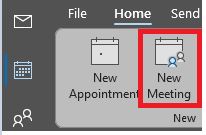
4. Set Up Meeting Details.
Title: Enter a descriptive title for your meeting.
Location: Enter a location if necessary.
Start Time/End Time: Choose the start and end times for your meeting.
Description: Add any details or agenda items for the meeting in the body of the event.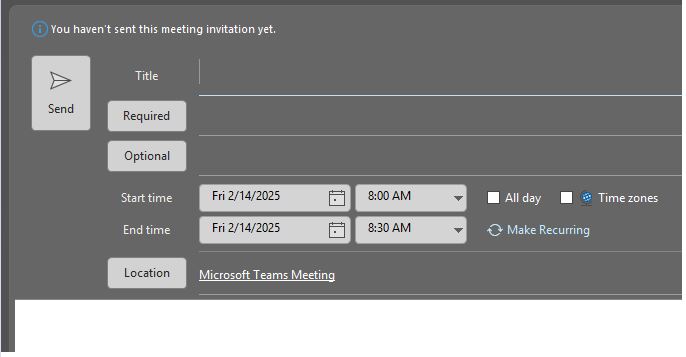
5. Add Attendees.
In the To field, enter the email address of the guest you want to invite (external
contact).
Note: When adding a non-UH contact, you'll typically need to type their full email address since they will not be in your organizations directory.
6. Add a Meeting Link (for virtual meetings).
If you're hosting a virtual meeting, you can add a link to a platform like Zoom, Teams,
or Google Meet.
7. Send the Invitation.
Once everything is set, click on Send to invite the attendee. The guest will receive an email invitation with all of the
meeting details.