Teams Meetings
Microsoft Teams makes it easy for UH faculty to collaborate with guests in virtual meetings, whether they are external partners, guest speakers, or colleagues from other institutions. With features like guest invitations, waiting room controls, and participant management, faculty can ensure a smooth and secure meeting experience.
To collaborate using Microsoft Teams Meetings, follow the instructions below:
- Invite a guest to a Teams meeting
- Enable a waiting room in Teams
- Remove a guest from a Teams meeting
Inviting a guest to a Teams meeting
1. Open Microsoft Teams and go to the Calendar tab on the left-hand side.

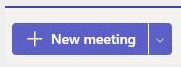
2. Click on New Meeting in the top right corner.
3 - Fill in the meeting details (title, date, time, etc.).
4 - In the Invite People field, type the external faculty members full email address (e.g., john.doe@example.com).
5 - The external contact will be invited to the meeting as a guest.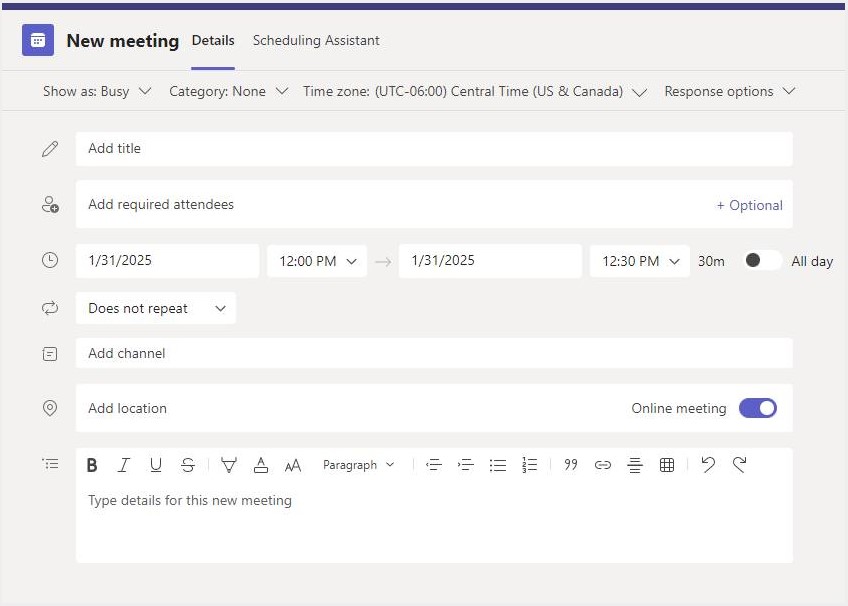
6 - Once done, click Send.
Note: When you send a Teams meeting invite, participants can join using any of the following options:
Via Web Browser - They can click the meeting link and select Continue on this browser to join without installing the app.
Via the Desktop or Mobile App - If they do have Teams installed, the link will open in the app automatically.
By Phone - If the meeting includes a dial-in option, invitees can join by calling the provided phone number.
Example:
Enabling a waiting room in Teams
When creating a meeting through the Teams app:
1. On the New Meeting window, select the Who can bypass the lobby? dropdown on the righthand side.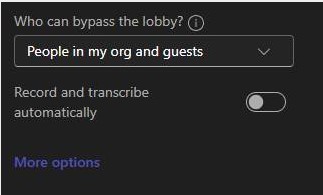
2. Choose an option in the dropdown.
Note: This setting will determine who automatically bypasses the waiting room.
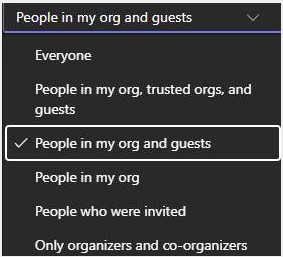
3. When a guest joins your meeting, you can choose to accept or deny them in the Participants pane: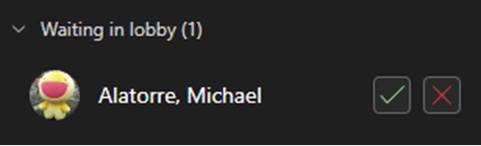
When creating a meeting through the Outlook app:
1. On the New Meeting window, select Meeting Options.
2. Select the Who can bypass the lobby? dropdown on the righthand side.
3. Choose an option in the dropdown.
Note: This setting will determine who automatically bypasses the waiting room.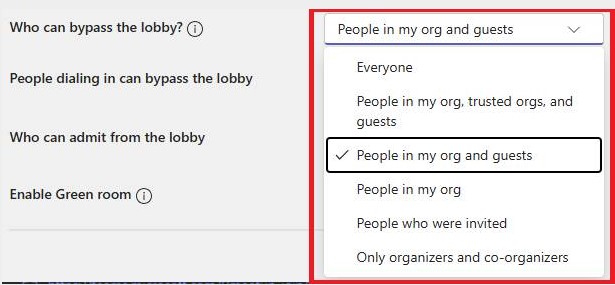
4. Click Save.
5. When a guest joins your meeting, you can choose to accept or deny them in the Participants pane:
Editing a meeting already created:
1. Click on the meeting on your Outlook or Teams calendar and choose Edit.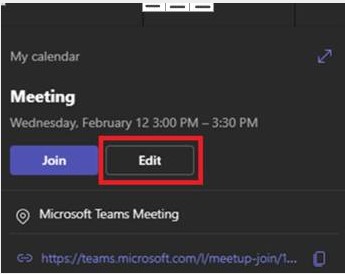
2. Under Meeting Details, select Meeting Options.
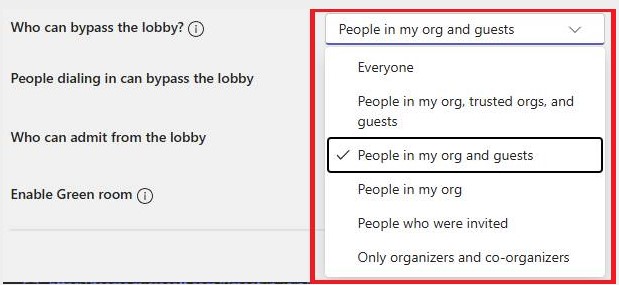
3. Select the Who can bypass the lobby? dropdown on the righthand side.
4. Choose an option in the dropdown.
Note: This setting will determine who automatically bypasses the waiting room.
5. Click Save.
6. When a guest joins your meeting, you can choose to accept or deny them in the Participants pane:

Removing a guest from a Teams meeting
To remove a guest during a meeting:
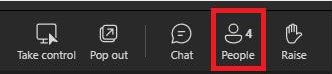
1. Click on the Participants icon in the meeting controls.
2. Find the external guest name.
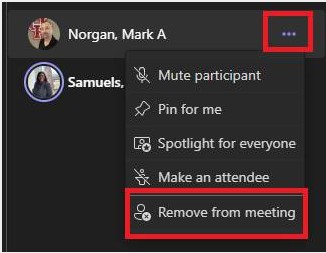
3. Click on the three dots next to their name and select Remove from meeting.