MFA Setup Guide
Part 1: Download the Microsoft Authenticator app
To get started, download the Microsoft Authenticator app from the app store on your mobile device:
Part 2: Registering a Device with Microsoft Authenticator
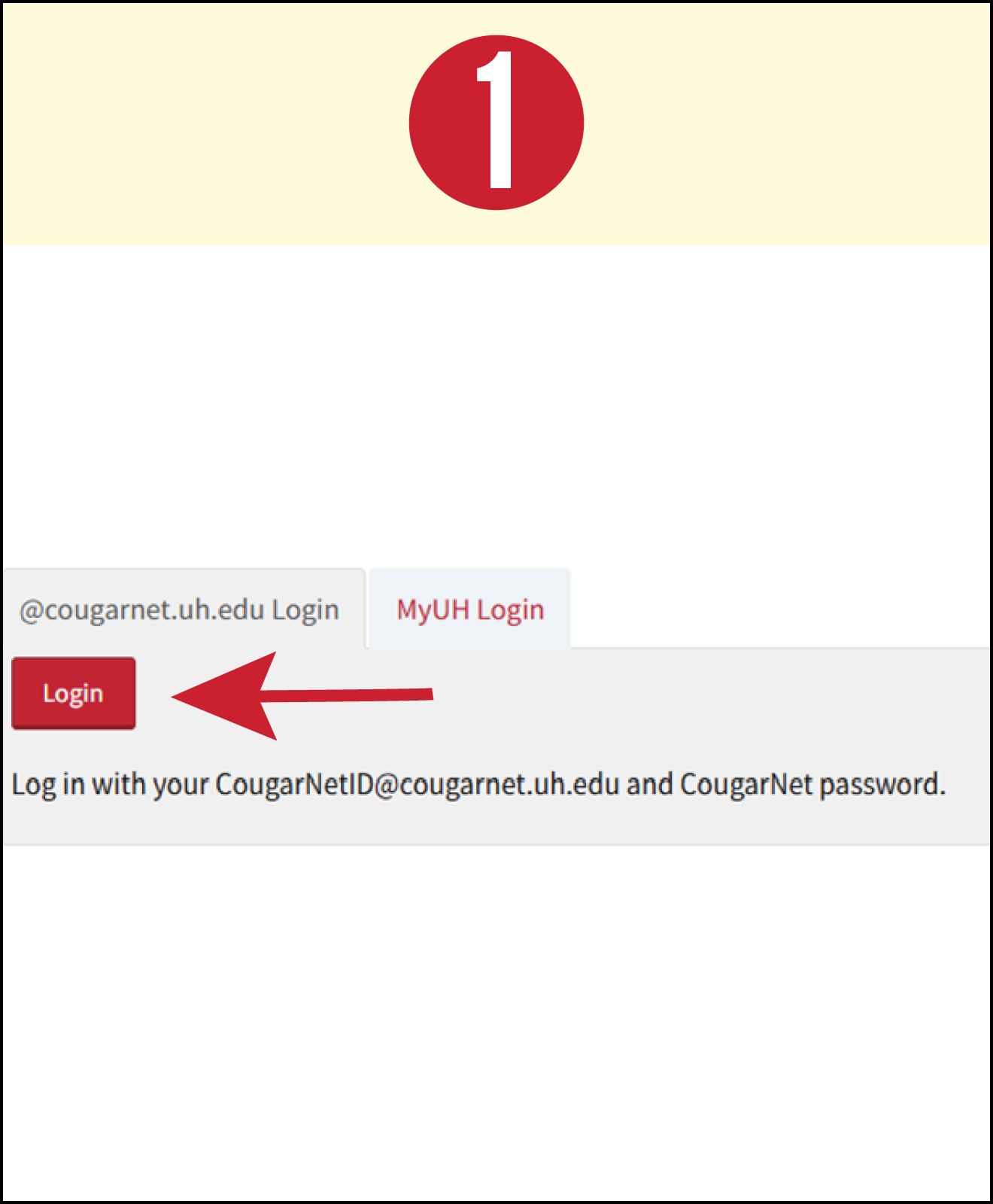
1. Go to accessuh.uh.edu.
2. Tap Login.
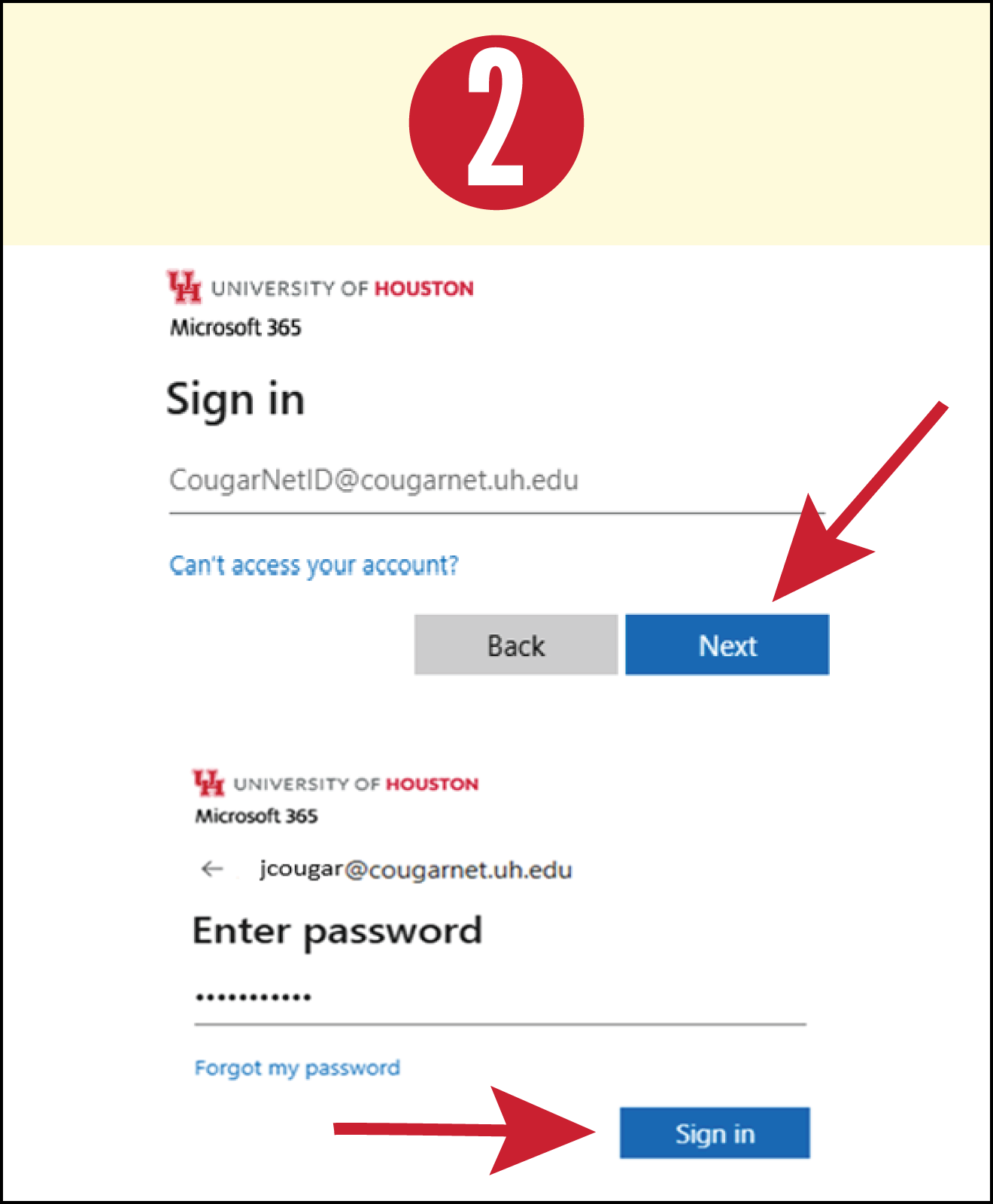
3. Enter your CougarNet email address.
4. Tap Next.
5. Enter your CougarNet password.
6. Tap Sign in.
7. Tap Next on the next three screens.
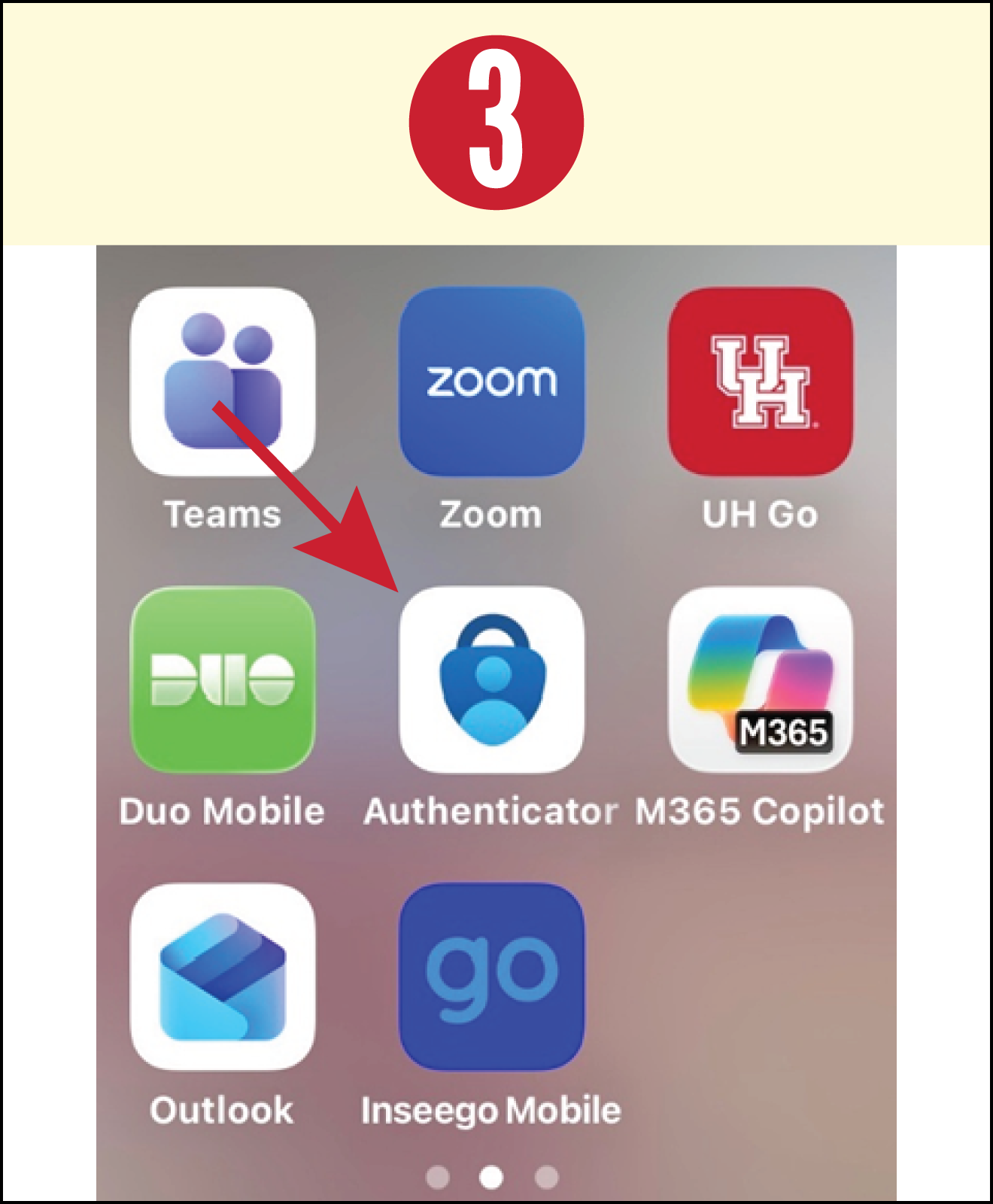
8. Tap the Microsoft Authenticator app on your smartphone.
Note: If the Microsoft Authenticator app asks for a PIN or another biometric method, just
use your usual way of unlocking it (PIN, face recognition, etc.) to start the registration
process.
9. If this is your first time opening the app, tap Accept and then Continue on the Privacy Agreement screens.
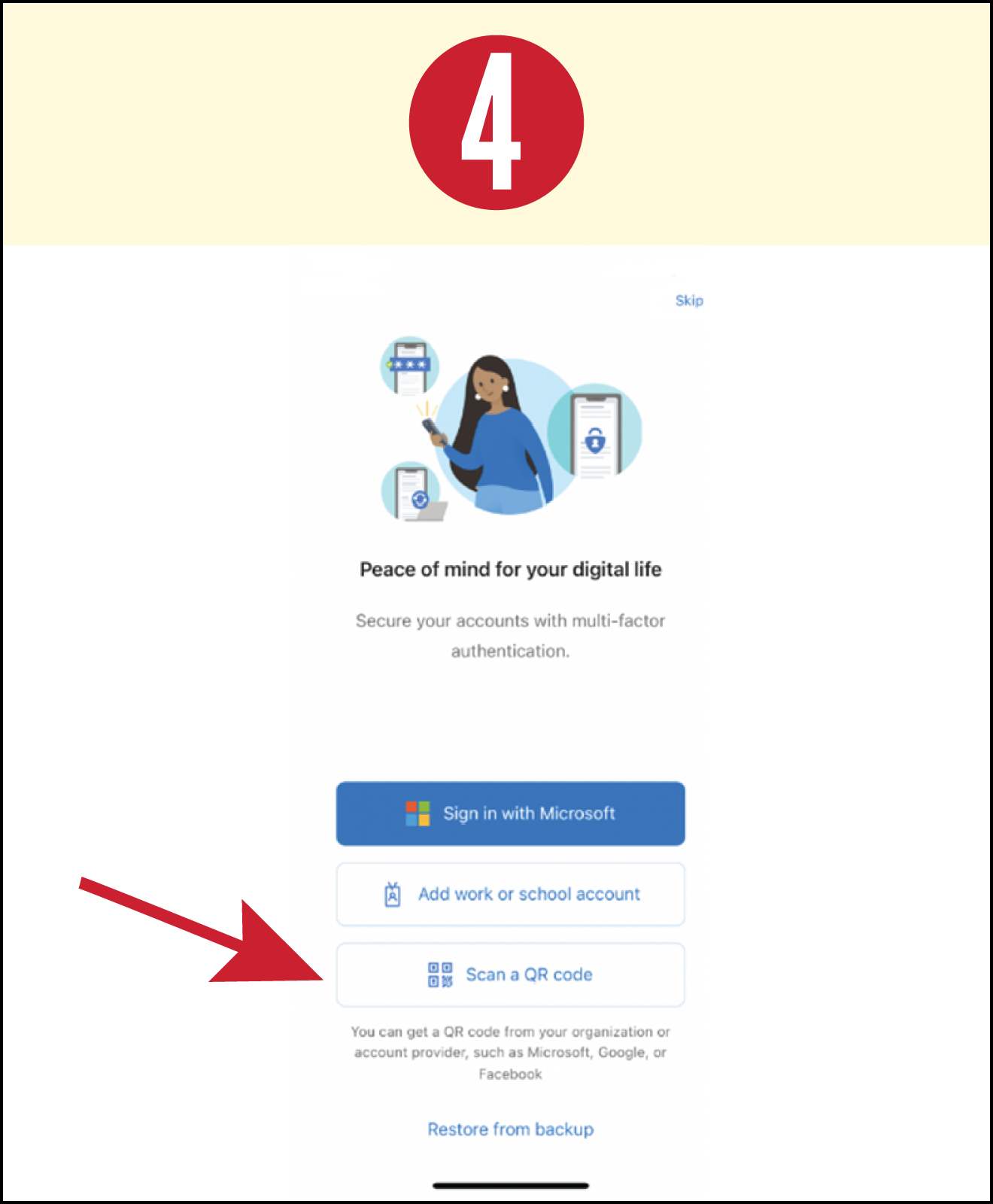
10. Tap Scan a QR code.
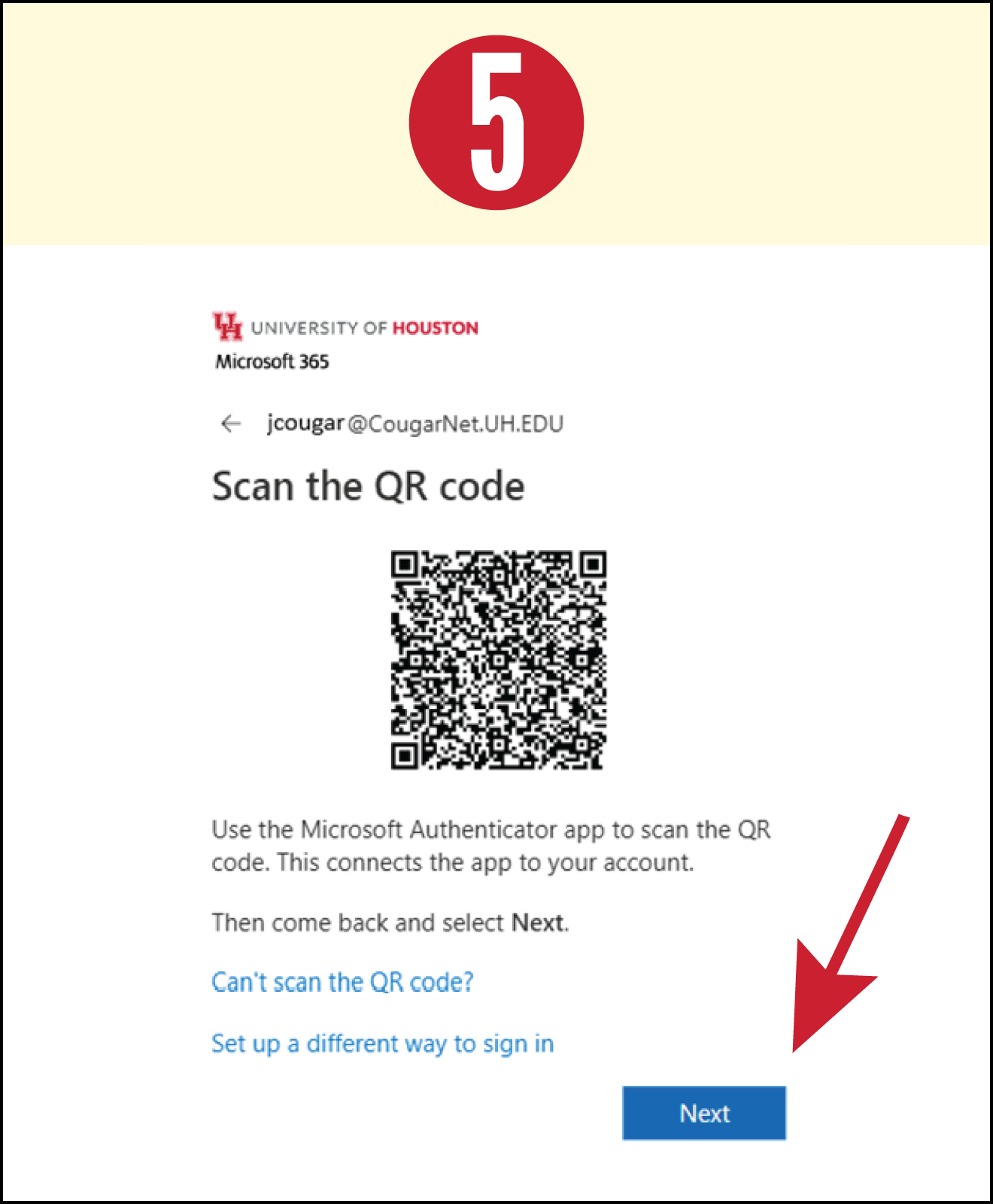
11. Return to the QR code on your computer screen, then aim your phone’s camera at it until it scans.
12. Tap Next.
Part 3: Adding a Phone Number as a Second Method of Authentication
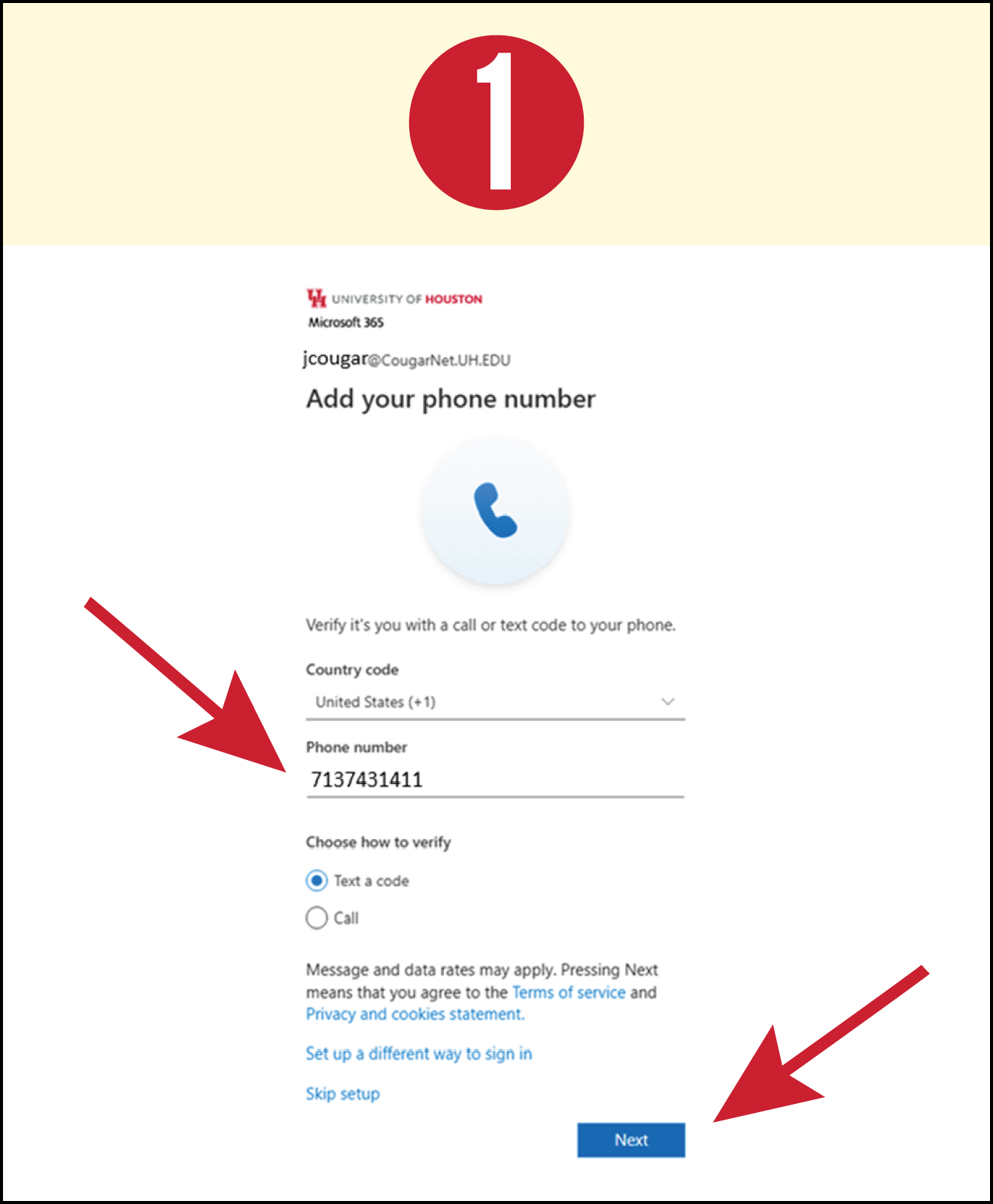
1. Enter phone number.
2. Select Text a code or Call.
3. Click Next.
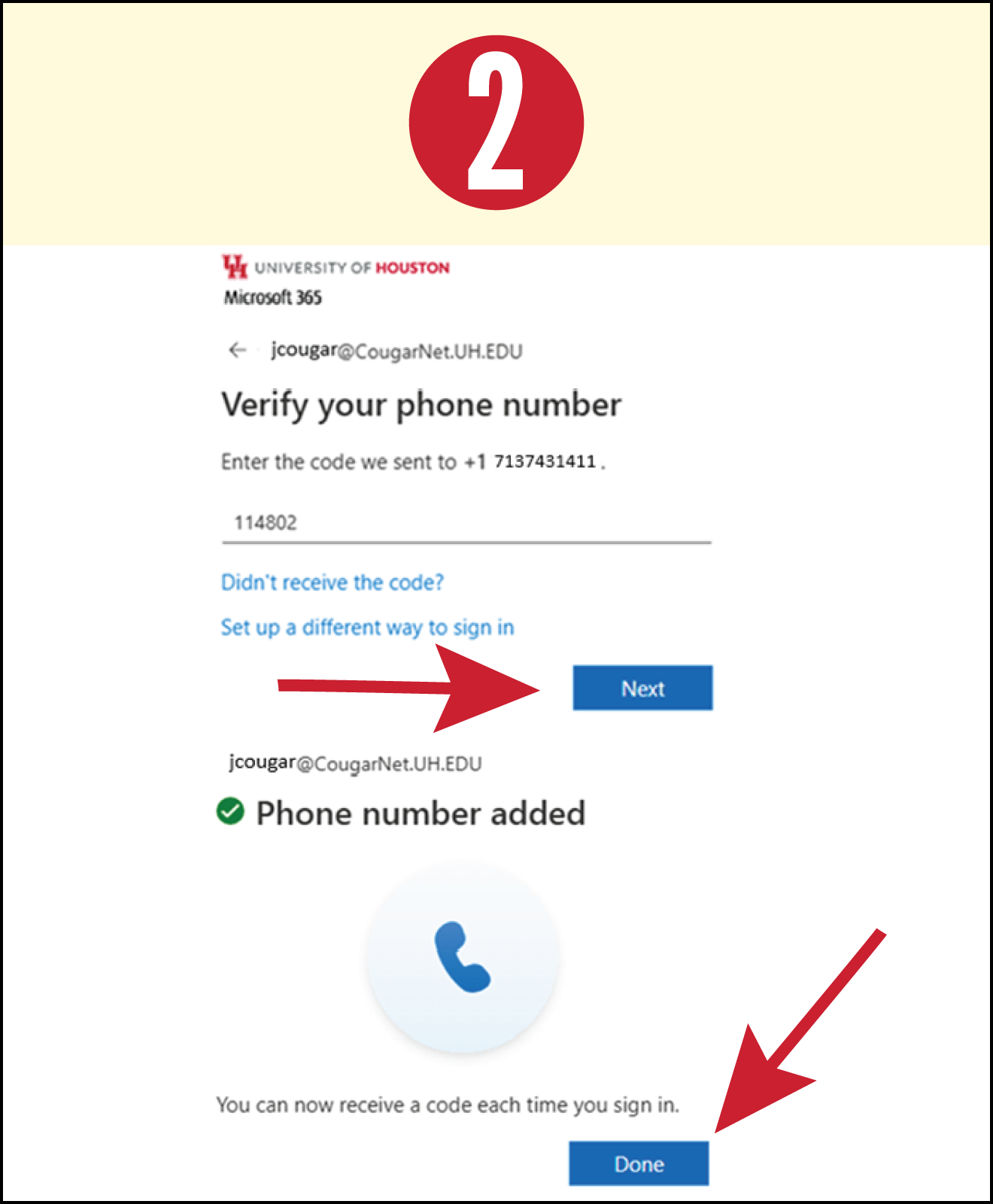
4. Enter the code from the text message you received.
5. Tap Next.
6. Tap Done.
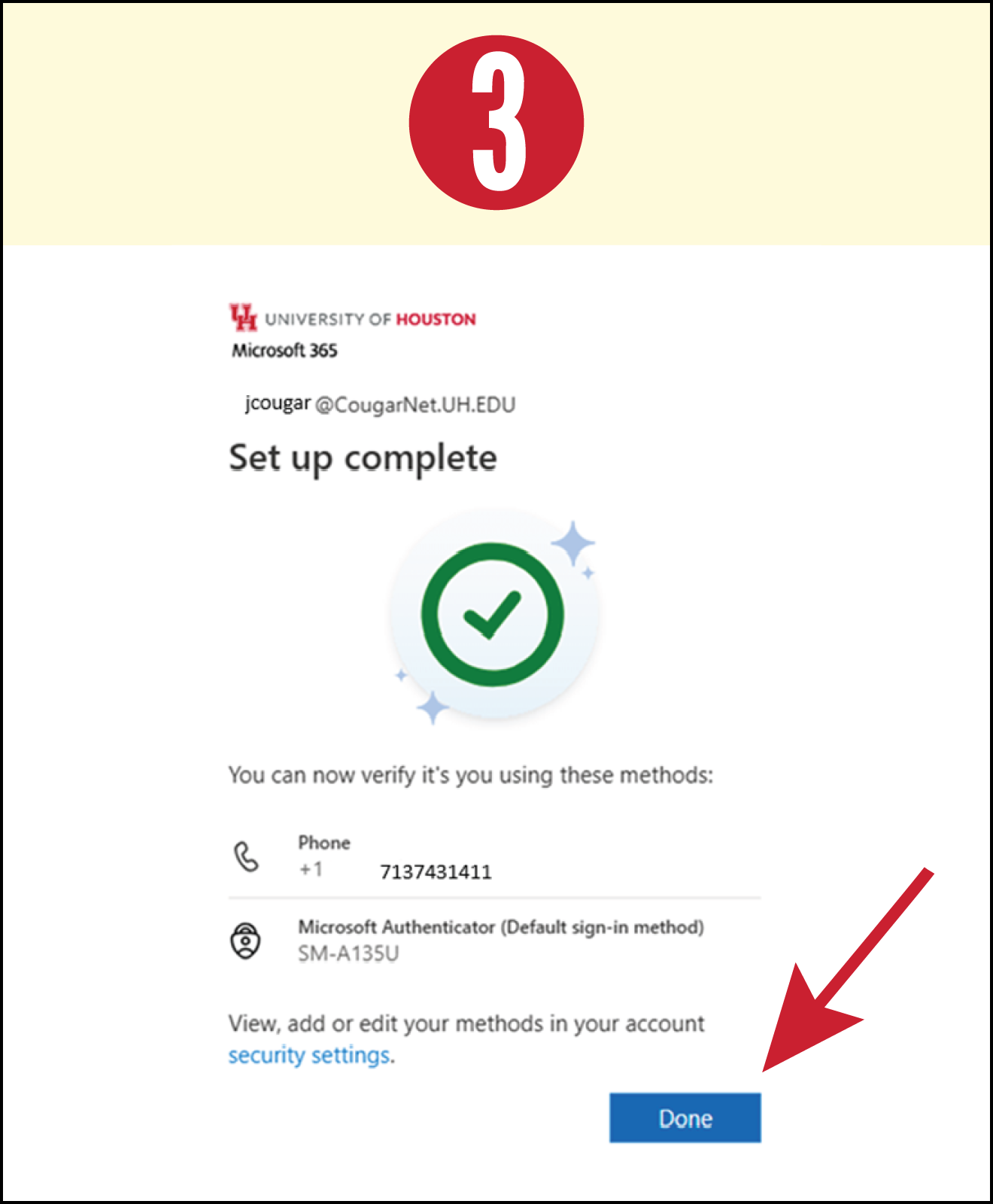
7. Tap Done.